

UI Controls
Input Controls in Android
Input controls are interactive elements of an Android application’s user interface. Android offers a wide range of built-in controls such as buttons, text input fields, seek bars, check boxes, toggle buttons, zoom buttons, and many others that help users interact with the app.
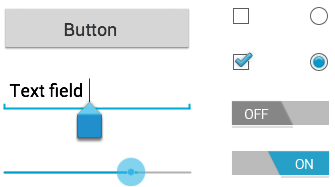
UI Controls and UI Elements
A View is a basic UI component that appears on the screen and allows user interaction. A ViewGroup is a special type of View that acts as a container to hold other Views or even other ViewGroups, helping to organize the layout structure of the user interface.
Android layouts are usually defined using XML files, which provide a clear and readable structure similar to HTML. Below is an example of a simple vertical layout containing a TextView and a Button:
Android UI Controls
Android provides several UI controls that are commonly used to design graphical user interfaces:
| Sr.No. | UI Control | Description |
|---|---|---|
| 1 | TextView | Used to display text on the screen. |
| 2 | EditText | A subclass of TextView that allows user text input. |
| 3 | AutoCompleteTextView | Displays text suggestions while the user types. |
| 4 | Button | A clickable button used to perform an action. |
| 5 | ImageButton | A button that displays an image instead of text. |
| 6 | CheckBox | Allows users to select one or more options independently. |
| 7 | ToggleButton | A button that switches between ON and OFF states. |
| 8 | RadioButton | Allows selection between two states: checked or unchecked. |
| 9 | RadioGroup | Groups multiple RadioButtons together. |
| 10 | ProgressBar | Shows progress of a background task. |
| 11 | Spinner | A drop-down list used to select a single value. |
| 12 | TimePicker | Allows the user to select a time. |
| 13 | DatePicker | Allows the user to select a date. |
Creating UI Controls
Input controls are created by defining UI elements in an XML layout file and assigning each one a unique ID. This ID helps identify the view within the layout hierarchy.
The syntax for assigning an ID is:
android:id="@+id/text_id"
Below is an example of defining a TextView with an ID:
After defining the control in XML, you can access it in your Activity using findViewById():
TextView myText = (TextView) findViewById(R.id.text_id);