

Styles and Themes
Android Styles and Themes
A style resource defines the visual appearance and formatting of user interface elements. A style can be applied to a single View inside a layout file or to an entire Activity or application through the AndroidManifest file.
Defining Styles
In Android, styles are defined in a separate XML file from the layout file. This XML file is placed inside the res/values/ directory and must have
The file name can be anything, but it must use the .xml extension.
Multiple styles can be declared in the same file using the
The value of an
Applying Styles
After defining a style, it can be applied to a View in the layout file using the style attribute:
This applies all the properties defined in CustomFontStyle to the TextView.
Style Inheritance
Android supports style inheritance, similar to CSS in web development. A new style can inherit properties from an existing style using the parent attribute and override only the required attributes.
Example of a custom theme using inheritance:
To apply this theme to an Activity, update the AndroidManifest.xml file:
After applying this theme, the primary text color in the Activity becomes red.
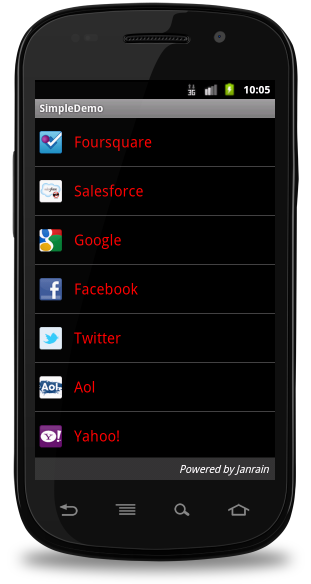
Applying Colors Using Themes
Color resources can be applied to theme attributes such as window background and text color by adding
Example:
This applies a custom color to the background of the window.
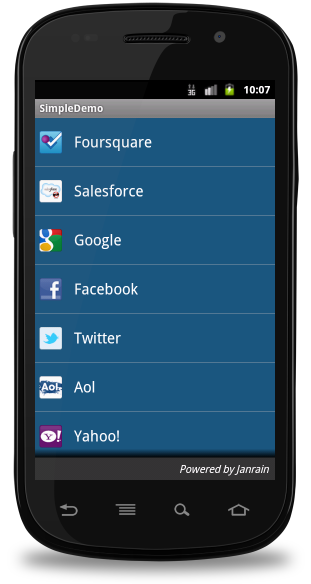
Using Nine-Patch Drawables with Buttons
A Nine-Patch drawable is a special image format that can stretch without distorting its visual quality. It is commonly used to design buttons and other scalable UI components.
Steps to create a Nine-Patch Button:
Create a Nine-Patch image and save it as
/res/drawable/my_nine_patch.9.png
Define a new button style
Apply that style to the buttonStyle attribute of a custom theme
Defining a Button Style:
Applying the Button Style in a Theme:
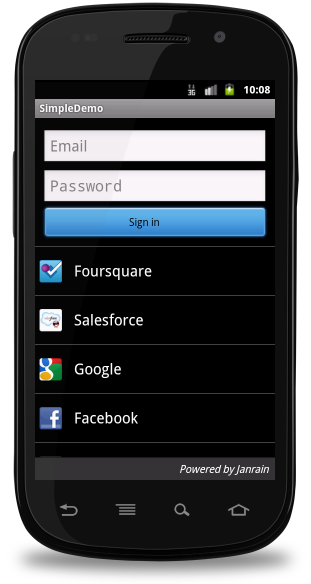
Android Themes
A theme is essentially a style that is applied to an entire Activity or application, rather than to a single View.
When a style is used as a theme, every View within the Activity or application automatically applies the supported attributes.
For example, if CustomFontStyle is applied as a theme, all text inside the Activity will appear in green monospace font.
Applying a Theme to the Entire Application:
Applying a Theme to a Single Activity:
Using Default Android Themes
Android provides many built-in themes that can be used directly or extended using inheritance.
Example:
Styling the Color Palette
Layout design can be based entirely on theme colors. For example, an application with a blue color scheme can be implemented using theme-based colors defined in styles.xml.
Example:
This ensures a consistent color palette across the application.
Default Styles and Themes
Android offers a large set of predefined styles and themes available in the R.style class.
To use a built-in style, replace underscores (_) with dots (.).
Example:
@android:style/Theme.NoTitleBar
You can explore Android’s built-in styles and themes in:
styles.xml
themes.xml