

NuGet Package Management
NuGet Package Manager in .NET
In this chapter, we discuss NuGet, which is the package manager for .NET and Visual Studio. NuGet is used to find, install, update, and manage packages—reusable pieces of software such as assemblies and libraries—that you want to use in your projects.
NuGet is not specific to ASP.NET MVC. It can be used in:
Console applications
WPF applications
ASP.NET applications
Azure applications
Any .NET-based project
What Is Package Management?
NuGet is responsible for package management, which includes:
Downloading packages
Installing packages
Updating packages
Configuring packages and references
Here, the term software does not mean end-user applications like Microsoft Word or Notepad. Instead, it refers to developer libraries and components, such as:
Mocking frameworks for unit testing
Data access libraries (e.g., NHibernate)
Logging frameworks
UI and utility libraries
Many NuGet packages are open source, while some are closed source. Some packages are also created and maintained by Microsoft.
A common point is that these packages do not come bundled with Visual Studio by default.
Installing Components Without NuGet
Before NuGet, installing third-party components required multiple manual steps:
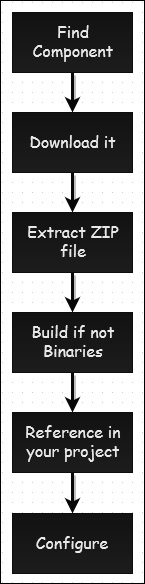
This process was time-consuming and error-prone.
Installing Components Using NuGet
NuGet simplifies all of the above steps into a single action.
When you install a package using NuGet:
It finds the correct package and latest version
Downloads and extracts the files
Adds references to your project
Applies required configuration automatically
This allows developers to focus more on building applications rather than managing dependencies.
Exmpale
Lets take a look at a simple example in which we will add support for Entity framework in our ASP.NET MVC project using NuGet.
Step 1 − Install the Entity Framework. Right-click on the project and select NuGet Package Manager → Manage NuGet Packages for Solution
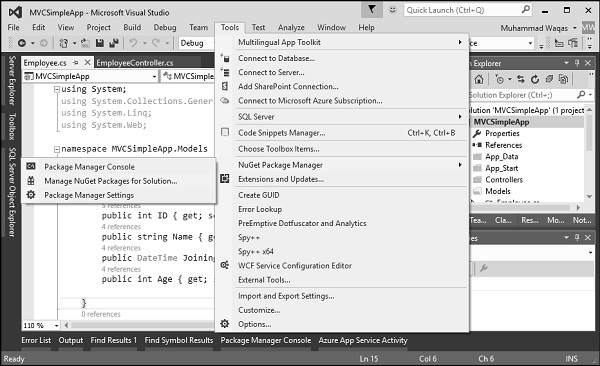
It will open the NuGet Package Manager.
Step 2 − Search for Entity framework in the search box.
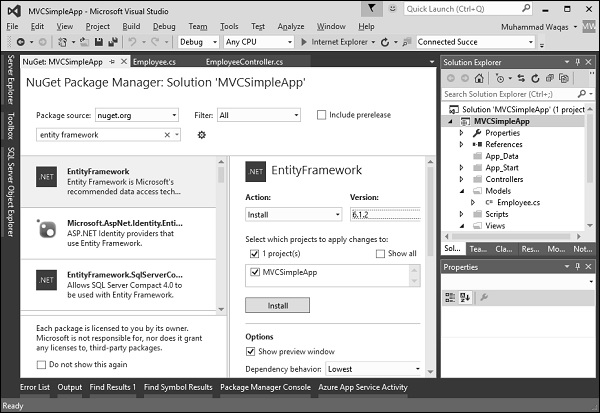
Step 3 − Select the Entity Framework and click Install button. It will open the Preview dialog.
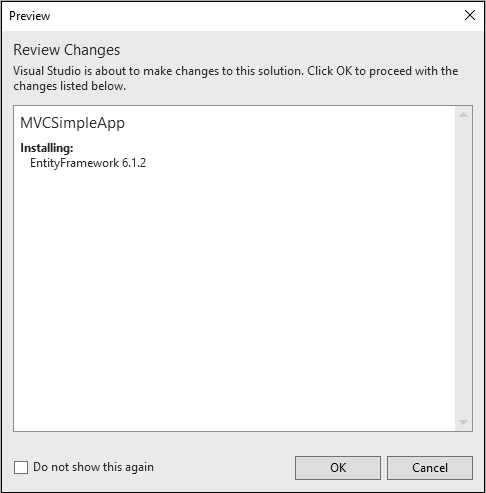
Step 4 − Click Ok to continue.
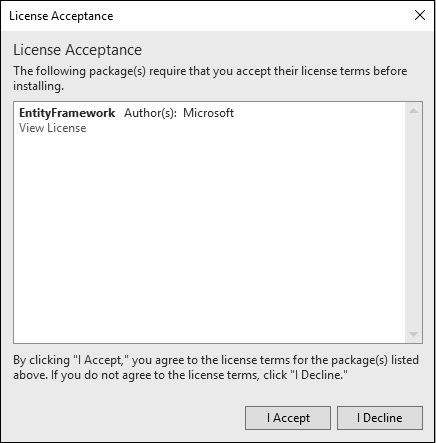
Step 5 − Click the I Accept button to start the installation.
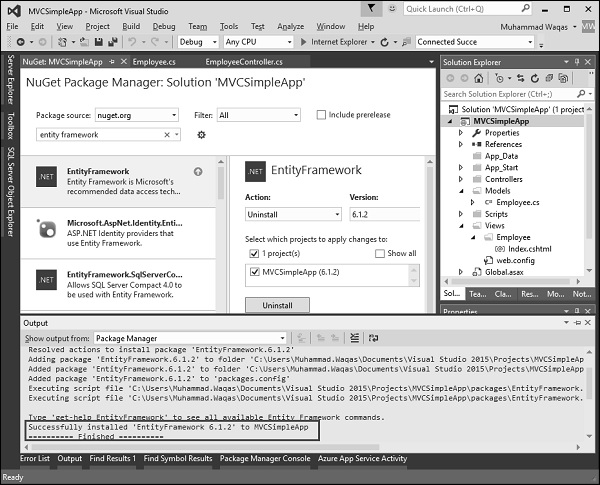
Once the Entity Framework is installed you will see the message in out window as shown above.
When you install a package with NuGet, you will see a new packages directory in the same folder as the solution file hosting your project. This package directory contains all the packages that you have installed for any of the projects in that solution.
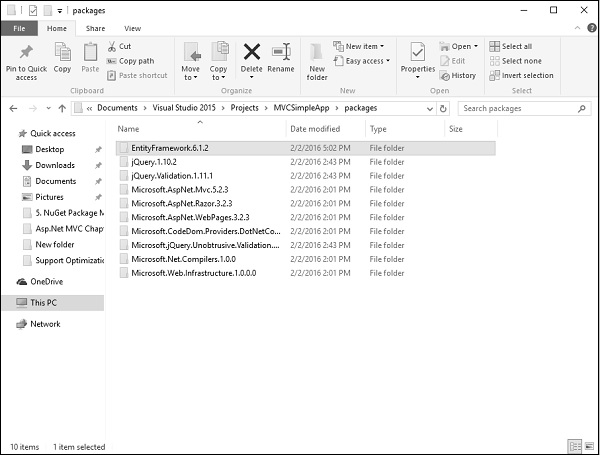
In other words, NuGet is not downloading packages into a central location, it's storing them on a per solution basis.