
Razor
Razor and ASP.NET MVC
Razor is not limited to ASP.NET MVC. It is a general-purpose templating engine that can be used anywhere to generate output such as HTML.
ASP.NET MVC simply provides a Razor-based view engine that allows Razor syntax to be used inside MVC views to generate HTML responses.

Razor View Engine in ASP.NET MVC
In this chapter, we focus on the Razor view engine used in ASP.NET MVC applications and understand why Razor was introduced.
Razor is a markup syntax that allows you to embed server-side code (C# or VB.NET) into web pages. It is not a programming language—it is a server-side templating (markup) language.
Razor helps generate dynamic HTML content by combining:
Static markup (HTML)
Server-side logic (C# or VB.NET)
Design Goals of Razor
Microsoft designed Razor with the following goals:
Easy to learn and use
Clean and readable syntax
No dependency on ASP.NET Web Forms lifecycle
Works well with Visual Studio tools
Not tightly coupled to ASP.NET MVC
Creating a View Using Razor
Let's create a new ASP.Net MVC project.
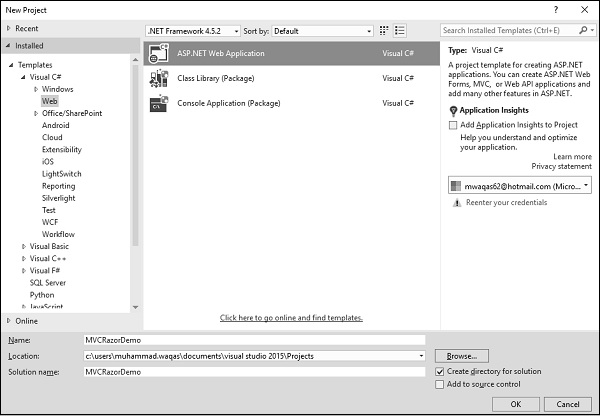
Enter the name of project in the name field and click Ok.
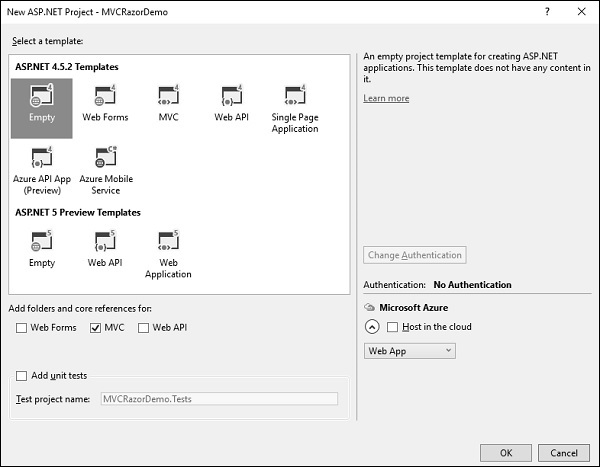
To keep things simple, select the Empty option and check the MVC checkbox in the Add folders and core references for section and click Ok. It will create a basic MVC project with minimal predefined content.
Once the project is created by Visual Studio, you will see a number of files and folders displayed in the Solution Explorer window. As we have created ASP.Net MVC project from an empty project template, so at the moment the application does not contain anything to run. Since we start with an empty application and don't even have a single controller, lets add a HomeController.
To add a controller right-click on the controller folder in the solution explorer and select Add → Controller. It will display the Add Scaffold dialog.
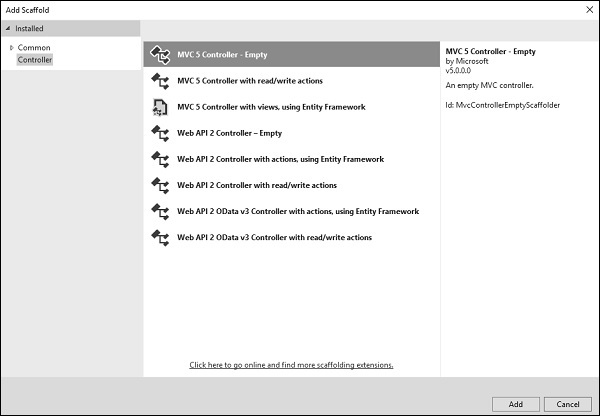
Select the MVC 5 Controller Empty option and click Add button and then the Add Controller dialog will appear.
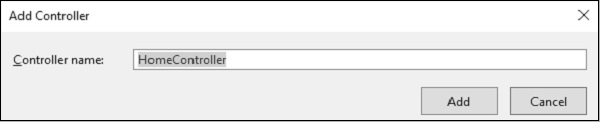
Set the name to HomeController and click Add button. You will see a new C# file HomeController.cs in the Controllers folder, which is open for editing in Visual Studio as well.
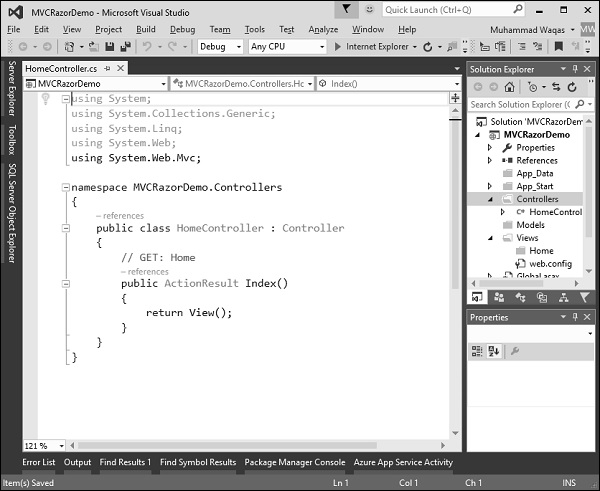
Right-click on the Index action and select Add View
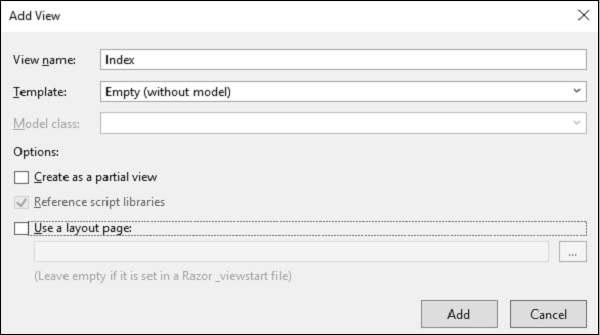
Select Empty from the Template dropdown and click Add button. Visual Studio will create an Index.cshtml file inside the View/Home folder.
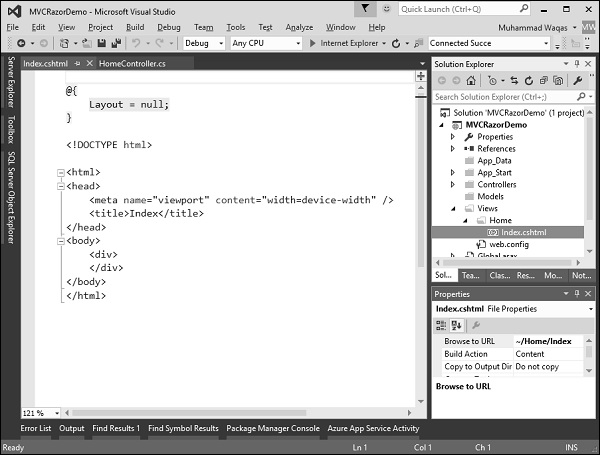
Notice that Razor view has a cshtml extension. If you're building your MVC application using Visual Basic it will be a VBHTML extension. At the top of this file is a code block that is explicitly setting this Layout property to null.
When you run this application you will see the blank webpage because we have created a View from an Empty template.
Let's add some C# code to make things more interesting. To write some C# code inside a Razor view, the first thing we will do is type the @ symbol that tells the parser that it is going to be doing something in code.
Let's create a FOR loop specify @i inside the curly braces, which is essentially telling Razor to put the value of i.
@{ Layout = null; }
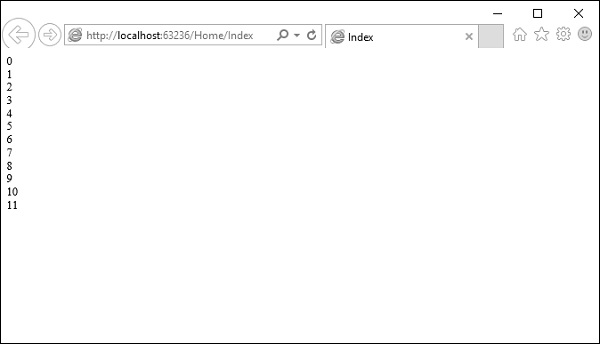
Run this application and you will see the following output.