

Controllers
Controllers in ASP.NET MVC
Controllers are the core component of an ASP.NET MVC application. They act as the first point of contact for incoming HTTP requests. A controller decides which model should be used, retrieves data from that model, and then passes the data to the appropriate view for rendering.
In short, controllers manage the overall flow of the application by handling user input and producing the correct output.
What is a Controller?
Controllers are C# classes that inherit from System.Web.Mvc.Controller
Each public method inside a controller is known as an action method
Action methods can be accessed through URLs to perform specific tasks
By convention, all controllers are placed in the Controllers folder created by Visual Studio
Example
Lets take a look at a simple example of Controller by creating a new ASP.Net MVC project.
Step 1 − Open the Visual Studio and click on File → New → Project menu option.
A new Project dialog opens.
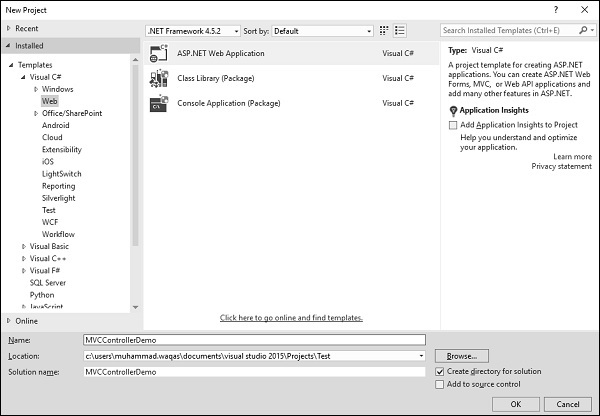
Step 2 − From the left pane, select Templates → Visual C# → Web.
Step 3 − In the middle pane, select ASP.NET Web Application.
Step 4 − Enter the project name MVCControllerDemo in the Name field and click ok to continue. You will see the following dialog, which asks you to set the initial content for the ASP.NET project.
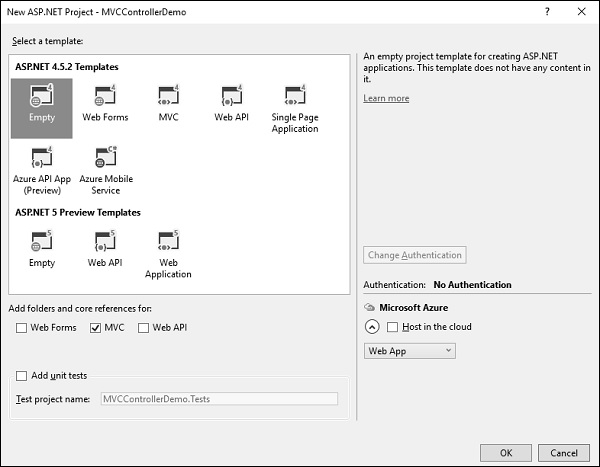
Step 5 − To keep things simple, select the Empty option and check the MVC checkbox in the Add folders and core references for section and click Ok.
It will create a basic MVC project with minimal predefined content.
Once the project is created by Visual Studio you will see a number of files and folders displayed in the Solution Explorer window.
Since we have created ASP.Net MVC project from an empty project template, so at the moment, the application does not contain anything to run.
Step 6 − Add EmployeeController by right-clicking on Controllers folder in the solution explorer. Select Add → Controller.
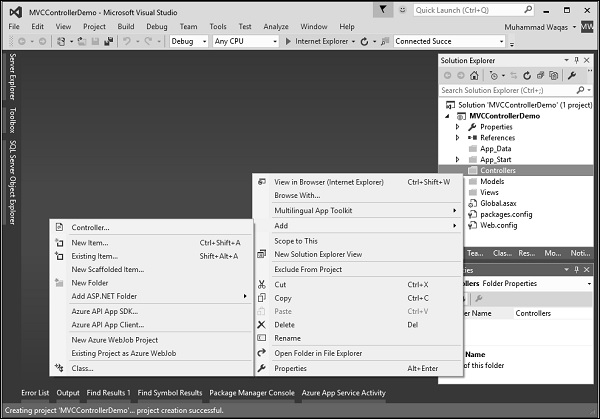
It will display the Add Scaffold dialog.
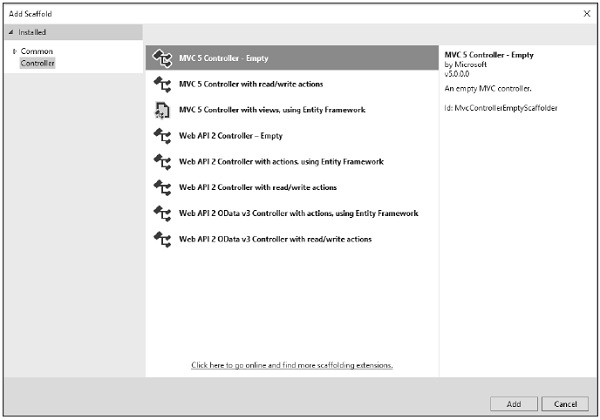
Step 7 − Select the MVC 5 Controller Empty option and click Add button.
The Add Controller dialog will appear.
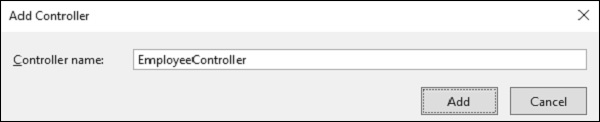
Step 8 − Set the name to EmployeeController and click Add button.
You will see a new C# file EmployeeController.cs in the Controllers folder, which is open for editing in Visual Studio as well.
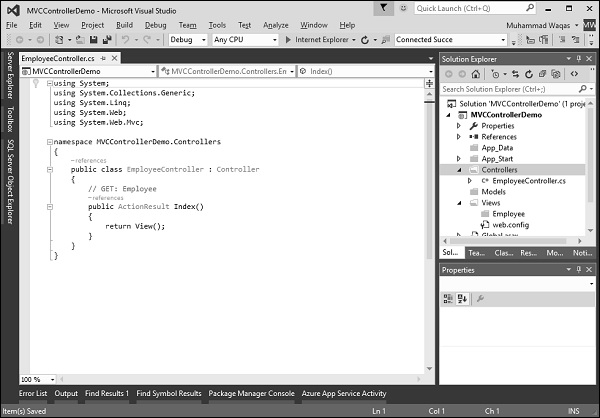
Adding a Custom Route for EmployeeController
Now we will configure a custom route for the Employee controller.
Step 1
Open RouteConfig.cs from the App_Start folder and add the following route:
routes.MapRoute( "Employee", "Employee/{name}", new { controller = "Employee", action = "Search", name = UrlParameter.Optional } );
Complete RouteConfig.cs File
using System; using System.Collections.Generic; using System.Linq; using System.Web; using System.Web.Mvc; using System.Web.Routing; namespace MVCControllerDemo { public class RouteConfig { public static void RegisterRoutes(RouteCollection routes) { routes.IgnoreRoute("{resource}.axd/{*pathInfo}"); routes.MapRoute( "Employee", "Employee/{name}", new { controller = "Employee", action = "Search", name = UrlParameter.Optional } ); routes.MapRoute( name: "Default", url: "{controller}/{action}/{id}", defaults: new { controller = "Home", action = "Index", id = UrlParameter.Optional } ); } } }
Understanding Parameter Passing
Suppose a user enters the following URL:
/Employee/Mark
Here, Mark is not treated as an action name. Instead, it is considered a parameter value.
To handle this scenario, MVC provides a simple mechanism:
Pass parameters directly to action methods.
Updating EmployeeController
Step 2
Modify the EmployeeController class as shown below:
using System; using System.Collections.Generic; using System.Linq; using System.Web; using System.Web.Mvc; namespace MVCControllerDemo.Controllers { public class EmployeeController : Controller { // GET: Employee public ActionResult Search(string name) { var input = Server.HtmlEncode(name); return Content(input); } } }
How MVC Handles Parameters
When an action method contains parameters, the MVC framework automatically looks for matching values using:
Route data
Query string
Form values
So when /Employee/Mark is requested, MVC extracts Mark from the URL and passes it to the Search action method.
Server.HtmlEncode() ensures that any malicious scripts are safely converted into plain text, improving security.
Output
When the application is run and the following URL is accessed:
http://localhost:61465/Employee/Mark
The browser displays:
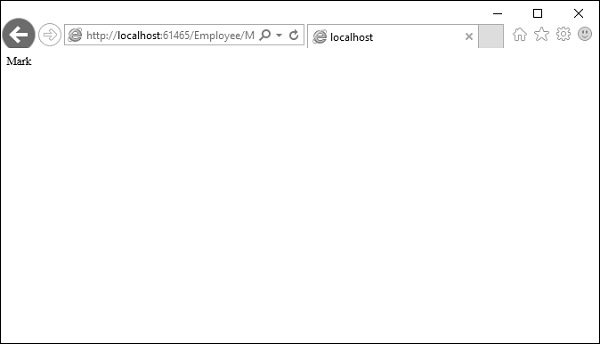
This confirms that the value was successfully captured from the URL.