
Security
Implementing Security in ASP.NET MVC
In this chapter, we will learn how to implement security features in an ASP.NET MVC application. We will also explore the new membership and identity features provided by ASP.NET and understand how they can be customized for users and roles.
In the latest versions of ASP.NET, user identities can be managed using the following sources:
Cloud-based identity providers
SQL Server database
Local Windows Active Directory
We will focus on ASP.NET Identity, which is the modern framework used to handle authentication, authorization, users, roles, and claims.
Authentication
Authentication is the process of verifying the identity of a user. It is a critical security feature because many applications allow access only to authenticated users.
Let’s start by creating a new ASP.NET MVC application.
Lets create a new ASP.Net MVC application.
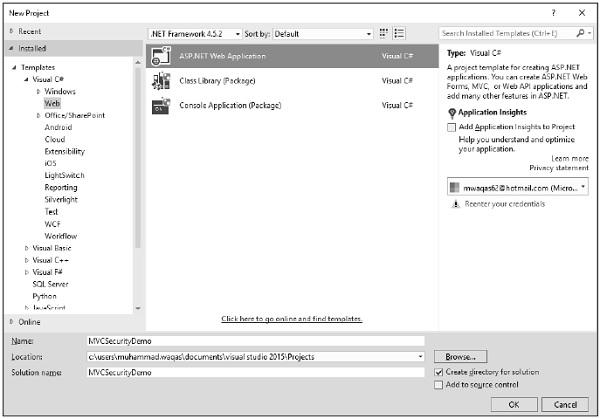
Click OK to continue.
When you start a new ASP.NET application, one of the steps in the process is configuring the authentication services for application needs.
Select MVC template and you will see that the Change Authentication button is now enabled.
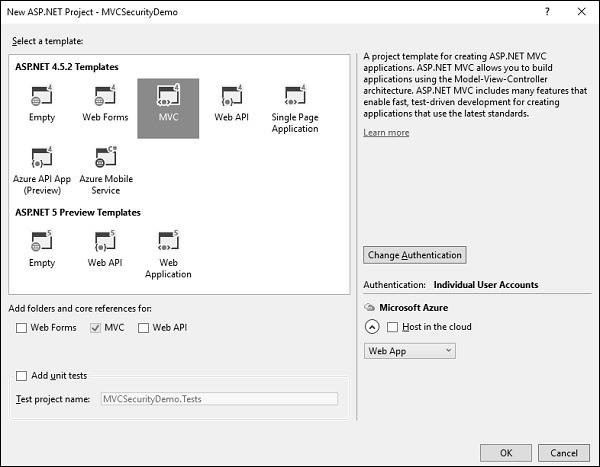
This is done with the Change Authentication button that appears in the New Project dialog. The default authentication is, Individual User Accounts.
Authentication Options in ASP.NET MVC
When you click Change Authentication, you will see four authentication options:
1. No Authentication
This option is used when you want to build a website that does not require identifying users.
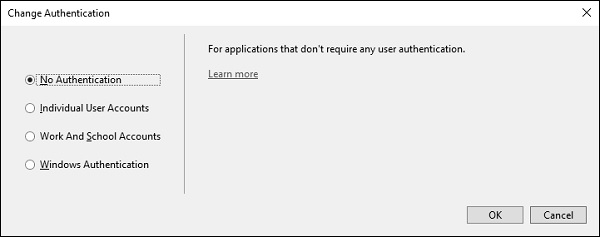
You can always add authentication later if needed.
2. Individual User Accounts (Forms Authentication)
This is the most commonly used option for public websites.
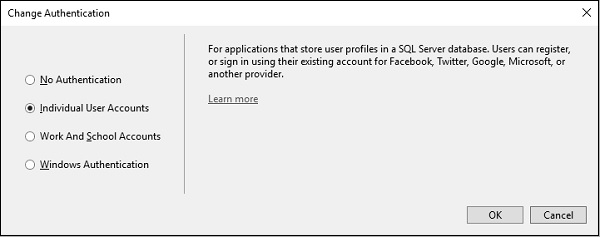
This option uses ASP.NET Identity and is ideal for internet-facing applications.
This is the authentication method we will focus on in this chapter.
3. Work and School Accounts
This option is used for enterprise or business applications.
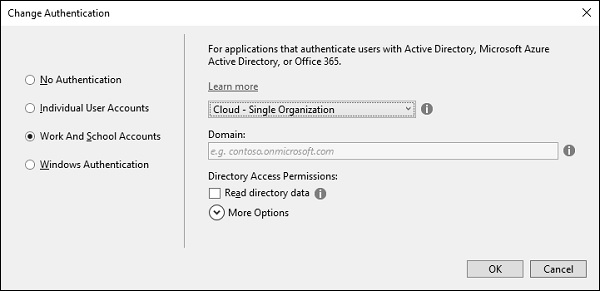
Best suited for internal and cloud-based corporate applications.
4.Windows Authentication
The fourth option is Windows authentication, which works well for intranet applications.
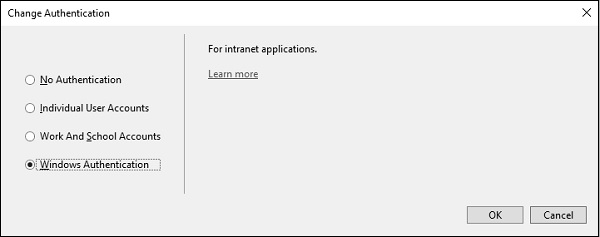
A user logs into Windows desktop and can launch a browser to the application that sits inside the same firewall. ASP.NET can automatically pick up the user's identity, the one that was established by active directory. This option does not allow any anonymous access to the site, but again that is a configuration setting that can be changed.
Let's take a look into the forms-based authentication, the one that goes by the name, Individual User Accounts. This application will store usernames and passwords, old passwords in a local SQL Server database, and when this project is created, Visual Studio will also add NuGet packages.
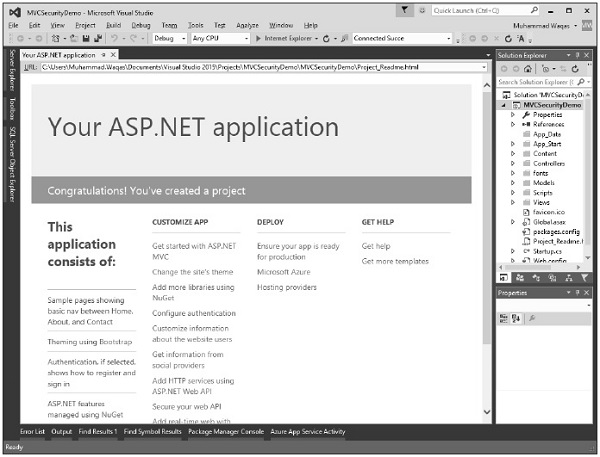
Now run this application and when you first come to this application you will be an anonymous user.
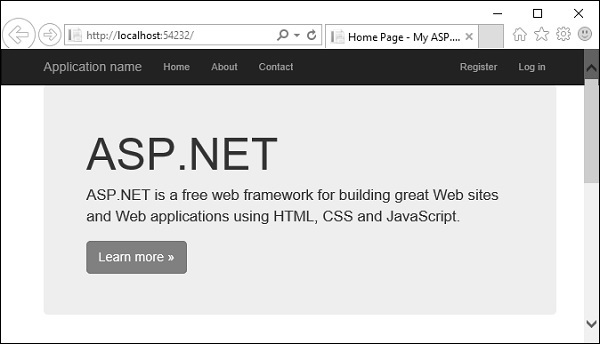
You won't have an account that you can log into yet so you will need to register on this site.
Click on the Register link and you will see the following view.
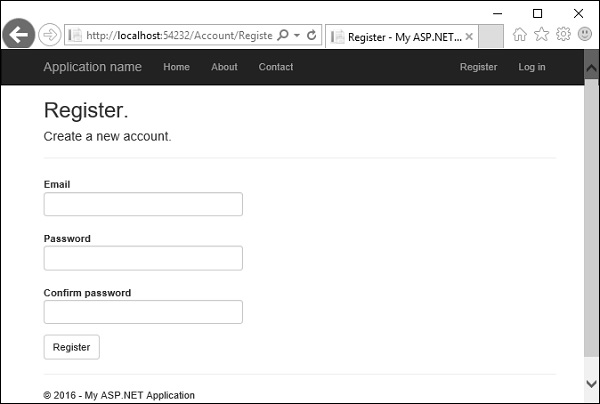
Enter your email id and password.
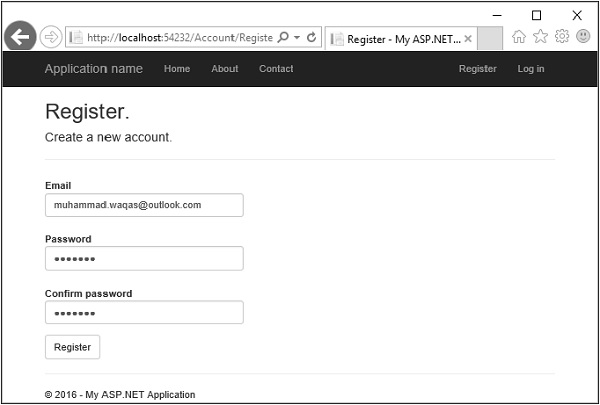
Click Register. Now, the application will recognize you.
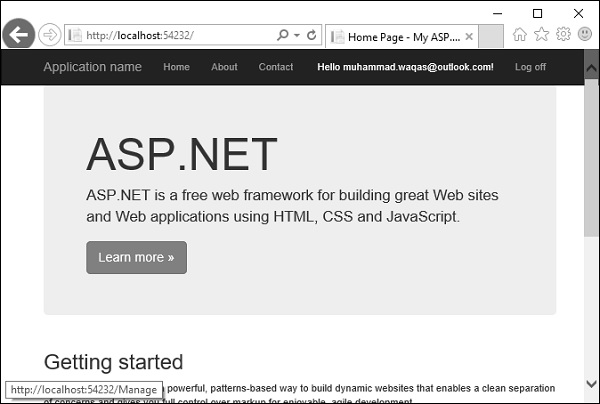
It will be able to display your name. In the following screenshot, you can see Hello, muhammad.waqas@outlook.com! is displayed. You can click on that and it's a link to a page where you can change the password.
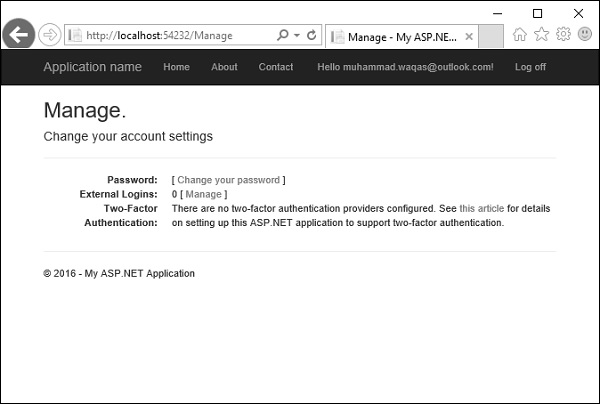
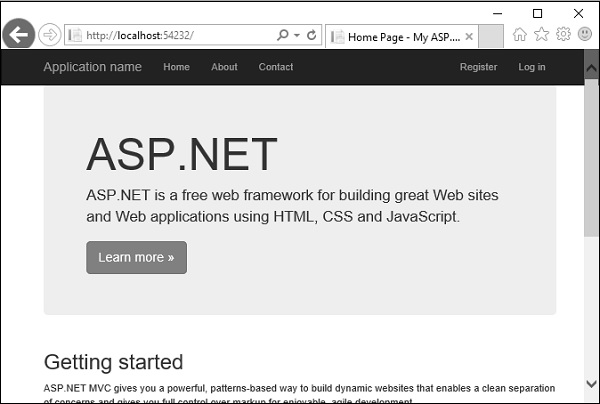
You can also log off, shut down, reboot, come back a week later, and you should be able to log in with the credentials that you used earlier. Now click on the log off button and it will display the following page.
Click again on the Log in link and you will go to the following page.
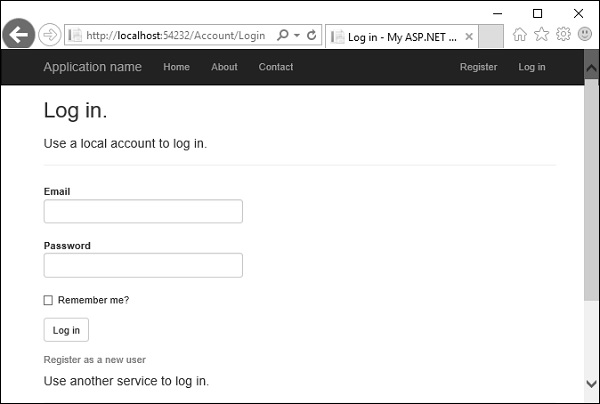
You can login again with the same credentials.
A lot of work goes on behind the scene to get to this point. However, what we want to do is examine each of the features and see how this UI is built. What is managing the logoff and the login process? Where is this information sorted in the database?
Let's just start with a couple of simple basics. First we will see how is this username displayed. Open the _Layout.cshtml from the View/Shared folder in the Solution explorer.
There is a common navigation bar, the application name, the menu, and there is a partial view that's being rendered called _loginpartial. That's actually the view that displays the username or the register and login name. So _loginpartial.cshtml is also in the shared folder.
@using Microsoft.AspNet.Identity @if (Request.IsAuthenticated) { using (Html.BeginForm("LogOff", "Account", FormMethod.Post, new { id = "logoutForm", @class = "navbar-right" })){ @Html.AntiForgeryToken()
} }else{ }As you can see above, there are if/else statements. If we do not know who the user is, because the request is not authenticated, this view will display register and login links. The user can click on the link to log in or register. All this is done by the account controller.
For now, we want to see how to get the username, and that's inside Request.IsAuthenticated. You can see a call to User.Identity.GetUserName. That will retrieve the username, which in this case is muhammad.waqas@outlook.com
Authorization
Let's suppose that we have some sort of information which we want to protect from unauthenticated users. So lets create a new controller to display that information, but only when a user is logged in.
Right-click on the controller folder and select Add → Controller.
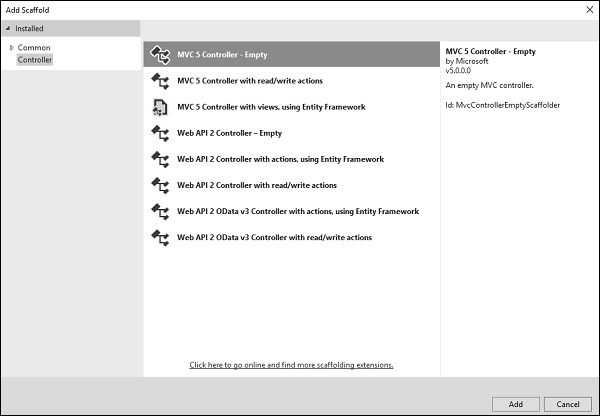
Select an MVC 5 controller - Empty controller and click Add.
Enter the name SecretController and click Add button.
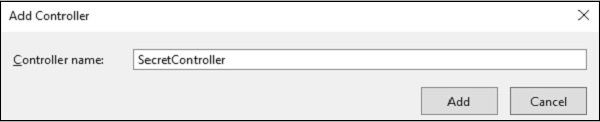
It will have two actions inside as shown in the following code.
using System.Web.Mvc; namespace MVCSecurityDemo.Controllers{ public class SecretController : Controller{ // GET: Secret public ContentResult Secret(){ return Content("Secret informations here"); } public ContentResult PublicInfo(){ return Content("Public informations here"); } } }
When you run this application, you can access this information without any authentication as shown in the following screenshot.
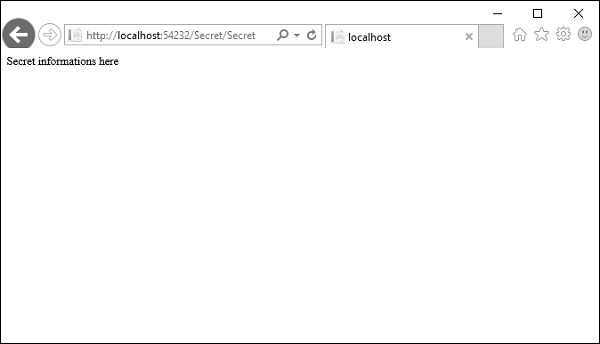
So only authenticated users should be able to get to Secret action method and the PublicInfo can be used by anyone without any authentication.
To protect this particular action and keep unauthenticated users from arriving here, you can use the Authorize attribute. The Authorize attribute without any other parameters will make sure that the identity of the user is known and they're not an anonymous user.
// GET: Secret [Authorize] public ContentResult Secret(){ return Content("Secret informations here"); }
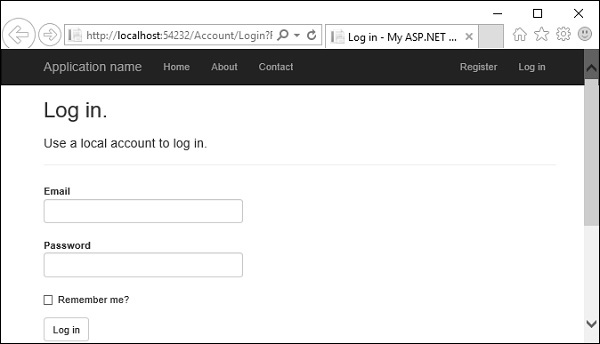
Now run this application again and specify the same URL http://localhost:54232/Secret/Secret. The MVC application will detect that you do not have access to that particular area of the application and it will redirect you automatically to the login page, where it will give you a chance to log in and try to get back to that area of the application where you were denied.
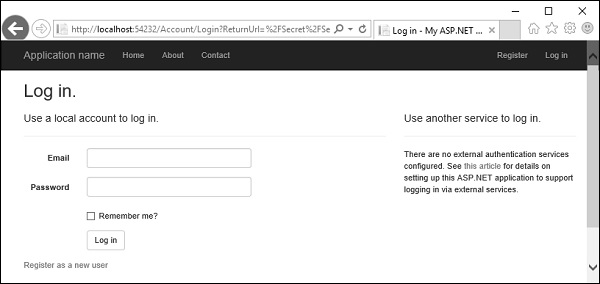
You can see that it is specified in the return URL, which essentially tells this page that if the user logs in successfully, redirect them back to /secret/secret.
Enter your credentials and click Log in button. You will see that it goes directly to that page.
If you come back to the home page and log off, you cannot get to the secret page. You will be asked again to log in, but if go to /Secret/PublicInfo, you can see that page, even when you are not authenticated.
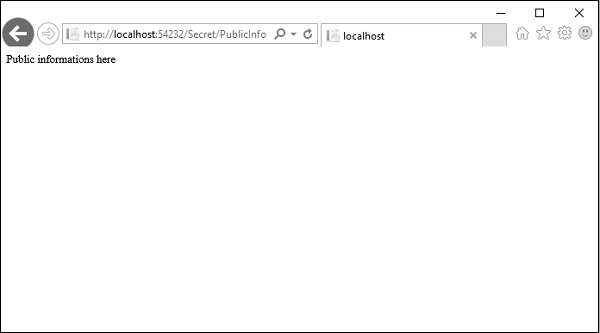
So, when you don't want to be placing authorization on every action when you're inside a controller where pretty much everything requires authorization. In that case you can always apply this filter to the controller itself and now every action inside of this controller will require the user to be authenticated.
using System.Web.Mvc; namespace MVCSecurityDemo.Controllers{ [Authorize] public class SecretController : Controller{ // GET: Secret public ContentResult Secret(){ return Content("Secret informations here"); } public ContentResult PublicInfo(){ return Content("Public informations here"); } } }
But if you really want any action to be open, you can come override this authorization rule with another attribute, which is, AllowAnonymous.
using System.Web.Mvc; namespace MVCSecurityDemo.Controllers{ [Authorize] public class SecretController : Controller{ // GET: Secret public ContentResult Secret(){ return Content("Secret informations here"); } [AllowAnonymous] public ContentResult PublicInfo(){ return Content("Public informations here"); } } }
Run this application and you can access the /Secret/PublicInfo with logging in but other action will require authentication.
It will allow anonymous users into this one action only.
With the Authorize attribute, you can also specify some parameters, like allow some specific users into this action.
using System.Web.Mvc; namespace MVCSecurityDemo.Controllers{ [Authorize(Users = "ali.khan@outlook.com")] public class SecretController : Controller{ // GET: Secret public ContentResult Secret(){ return Content("Secret informations here"); } [AllowAnonymous] public ContentResult PublicInfo(){ return Content("Public informations here"); } } }
When you run this application and go to /secret/secret, it will ask you to log in because it is not the proper user for this controller.