

Data Model
Models in ASP.NET MVC
In this chapter, we discuss how to build Models in an ASP.NET MVC application.
A Model is responsible for holding the data that is requested by the Controller and later displayed in the View.
A model is a collection of classes that represents the business data and business rules of an application.
It acts as a business domain container and is mainly used to interact with the database.
Models can also process, validate, and manipulate data in order to implement the required business logic before sending the data to the controller or view.
Example
Lets take a look at a simple example of Model by creating a new ASP.Net MVC project.
Step 1 − Open the Visual Studio. Click File → New → Project menu option.
A new Project dialog opens.
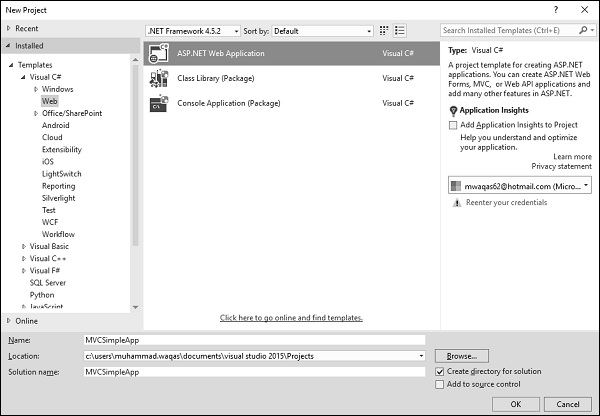
Step 2 − From the left pane, select Templates → Visual C# → Web.
Step 3 − In the middle pane, select ASP.NET Web Application.
Step 4 − Enter the project name MVCSimpleApp in the Name field and click Ok to continue. You will see the following dialog which asks you to set the initial content for the ASP.NET project.
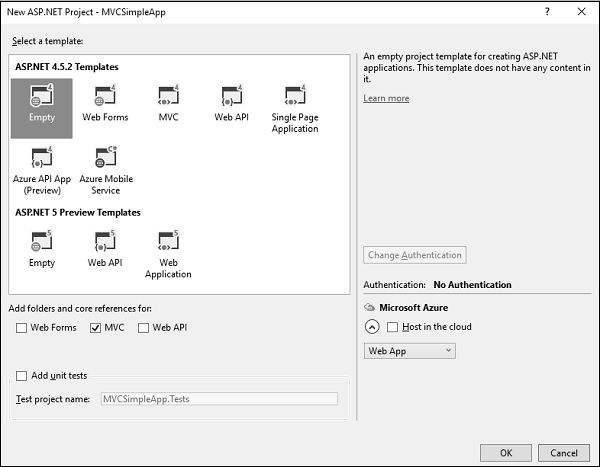
Step 5 − To keep things simple, select the Empty option and check the MVC checkbox in the Add folders and core references for section and click Ok.
It will create a basic MVC project with minimal predefined content.
We need to add a controller now.
Step 6 − Right-click on the controller folder in the solution explorer and select Add → Controller.
It will display the Add Scaffold dialog.
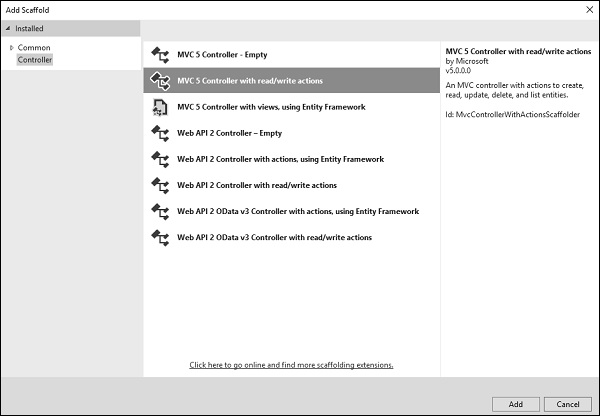
Step 7 − Select the MVC 5 Controller with read/write actions option. This template will create an Index method with default action for Controller. This will also list other methods like Edit/Delete/Create as well.
Step 8 − Click Add button and Add Controller dialog will appear.
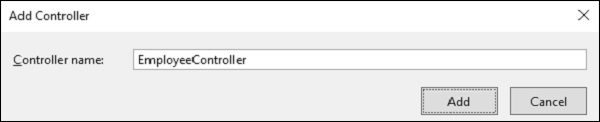
Step 9 − Set the name to EmployeeController and click the Add button.
Step 10 − You will see a new C# file EmployeeController.cs in the Controllers folder, which is open for editing in Visual Studio with some default actions.
using System; using System.Collections.Generic; using System.Linq; using System.Web; using System.Web.Mvc; namespace MVCSimpleApp.Controllers { public class EmployeeController : Controller{ // GET: Employee public ActionResult Index(){ return View(); } // GET: Employee/Details/5 public ActionResult Details(int id){ return View(); } // GET: Employee/Create public ActionResult Create(){ return View(); } // POST: Employee/Create [HttpPost] public ActionResult Create(FormCollection collection){ try{ // TODO: Add insert logic here return RedirectToAction("Index"); }catch{ return View(); } } // GET: Employee/Edit/5 public ActionResult Edit(int id){ return View(); } // POST: Employee/Edit/5 [HttpPost] public ActionResult Edit(int id, FormCollection collection){ try{ // TODO: Add update logic here return RedirectToAction("Index"); }catch{ return View(); } } // GET: Employee/Delete/5 public ActionResult Delete(int id){ return View(); } // POST: Employee/Delete/5 [HttpPost] public ActionResult Delete(int id, FormCollection collection){ try{ // TODO: Add delete logic here return RedirectToAction("Index"); }catch{ return View(); } } } }
Lets add a model.
Step 11 − Right-click on the Models folder in the solution explorer and select Add → Class.
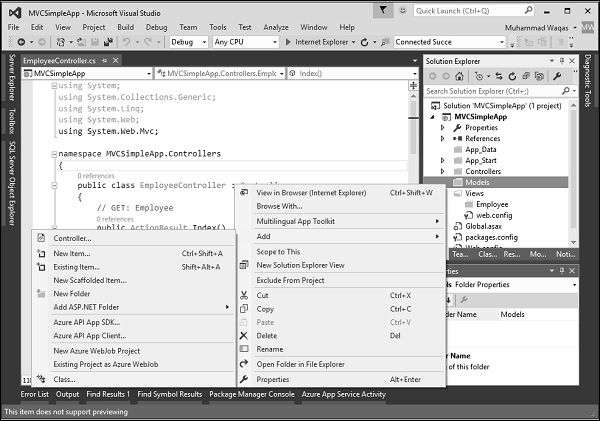
You will see the Add New Item dialog.
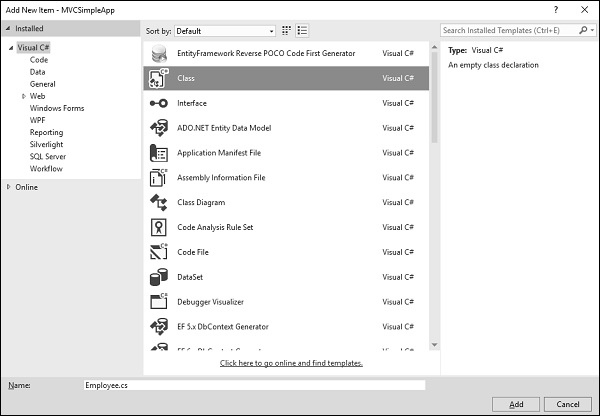
Step 12 − Select Class in the middle pan and enter Employee.cs in the name field.
Step 13 − Add some properties to Employee class using the following code.
using System; using System.Collections.Generic; using System.Linq; using System.Web; namespace MVCSimpleApp.Models { public class Employee{ public int ID { get; set; } public string Name { get; set; } public DateTime JoiningDate { get; set; } public int Age { get; set; } } }
Lets update the EmployeeController.cs file by adding one more method, which will return the list of employee.
[NonAction]
public List
Step 14 − Update the index action method as shown in the following code.
public ActionResult Index(){ var employees = from e in GetEmployeeList() orderby e.ID select e; return View(employees); }
Step 15 − Run this application and append /employee to the URL in the browser and press Enter. You will see the following output.
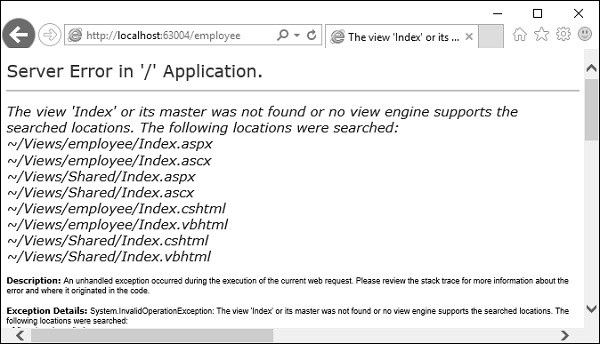
As seen in the above screenshot, there is an error and this error is actually quite descriptive which tells us it can't find the Index view.
Step 16 − Hence to add a view, right-click inside the Index action and select Add view.
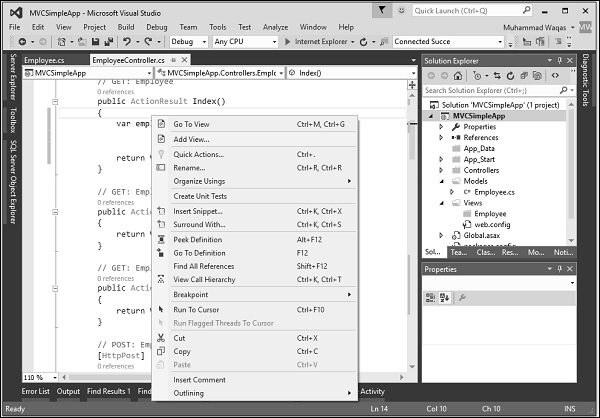
It will display the Add View dialog and it is going to add the default name.
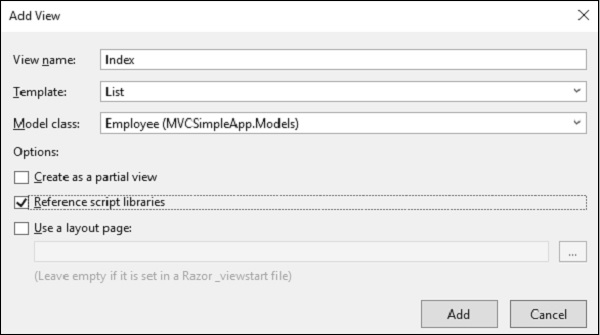
Step 17 − Select the List from the Template dropdown and Employee in Model class dropdown and also uncheck the Use a layout page checkbox and click Add button.
It will add some default code for you in this view.
@model IEnumerable @Html.ActionLink("Create New", "Create")
@foreach (var item in Model) {
@Html.DisplayNameFor(model => model.Name)
@Html.DisplayNameFor(model => model.JoiningDate)
@Html.DisplayNameFor(model => model.Age)
}
@Html.DisplayFor(modelItem => item.Name)
@Html.DisplayFor(modelItem => item.JoiningDate)
@Html.DisplayFor(modelItem => item.Age)
@Html.ActionLink("Edit", "Edit", new { id = item.ID }) |
@Html.ActionLink("Details", "Details", new { id = item.ID }) |
@Html.ActionLink("Delete", "Delete", new { id = item.ID })
Step 18 − Run this application and you will receive the following output.
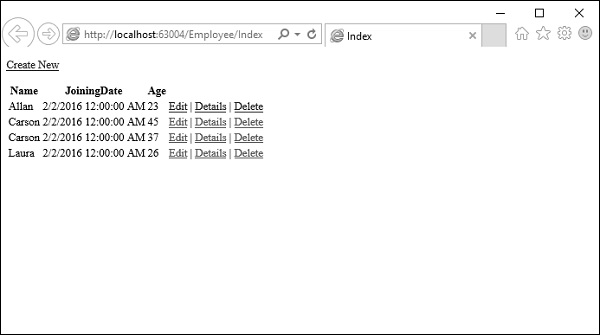
A list of employees will be displayed.