

Self-hosting
Self-hosting
Self-Hosting creates a runtime environment for the application to run in any environment say MAC, or in Linux box, etc. Self-Hosting also means it will have a mini CLR version.
Example
Deploy using File System
Lets take a look at a simple example of self-hosting.
Step 1 − Once your ASP.NET MVC application is completed and you want to use selfhosting, right-click on the Project in the solution explorer.
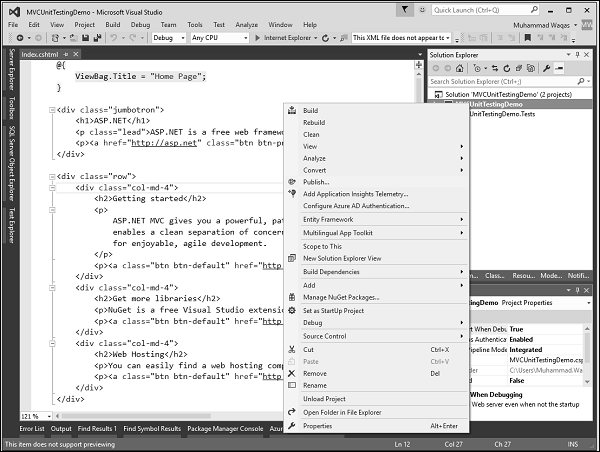
You will see the following dialog.
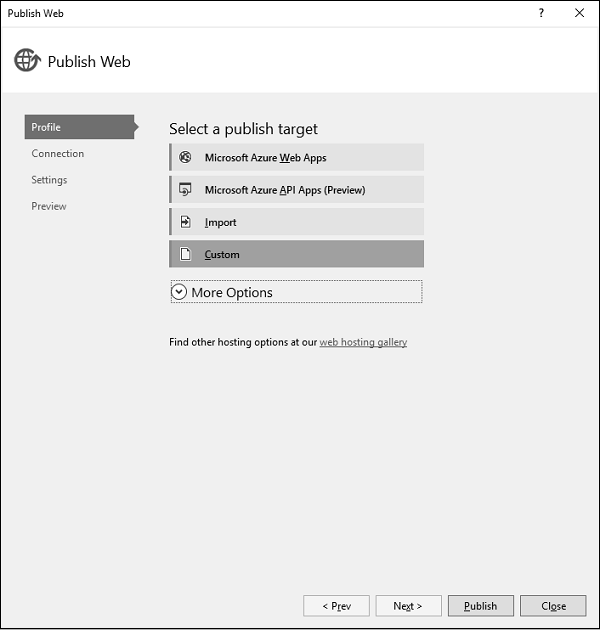
Step 2 − Click the Custom option, which will display the New Custom Profile dialog.
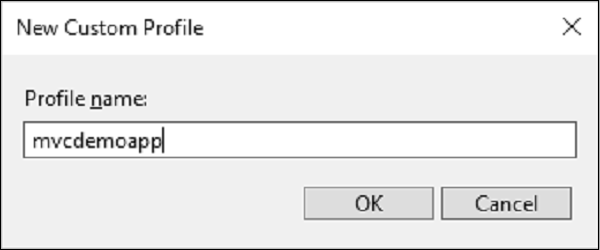
Step 3 − Enter the profile name and click Ok.
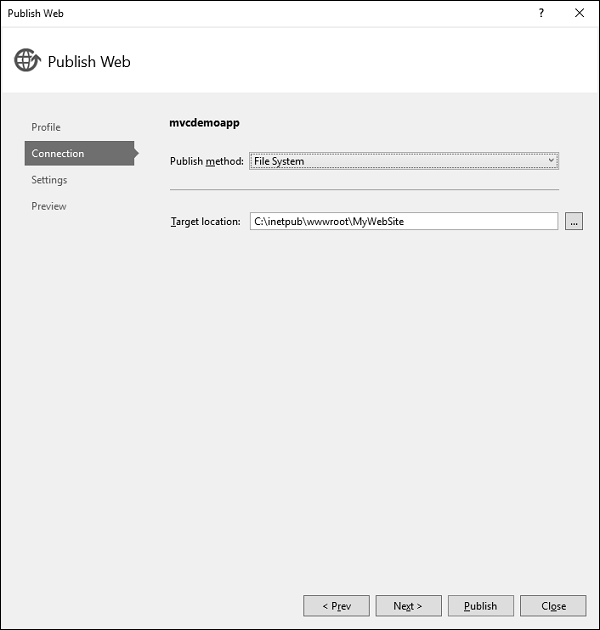
Step 4 − Select the File System from the Publish method dropdown list and also specify the target location. Click Next button.
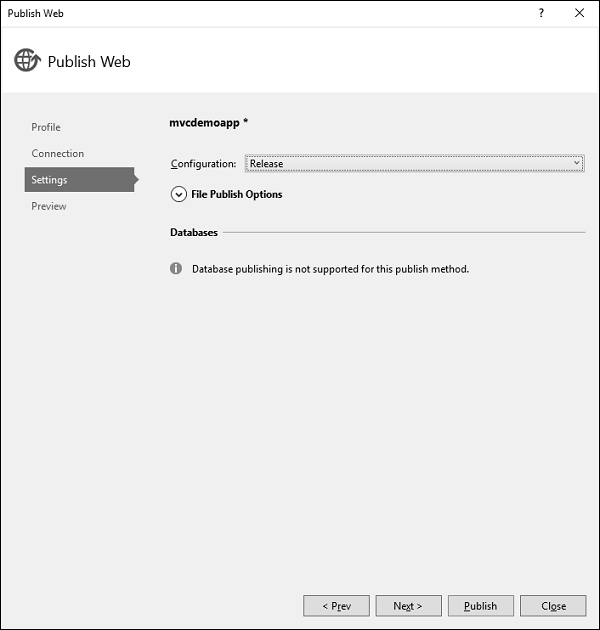
Step 5 − Expand the File Publish Options.
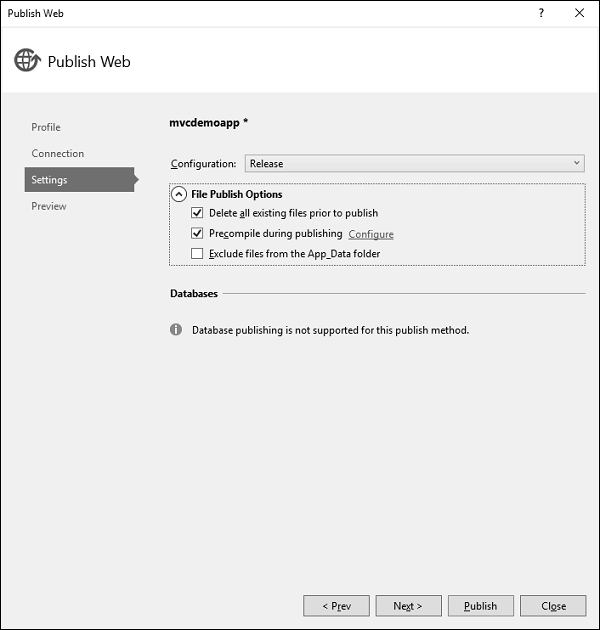
Step 6 − Check the Delete all existing files prior to publish and Precompile during publishing checkboxes and click Next to continue.
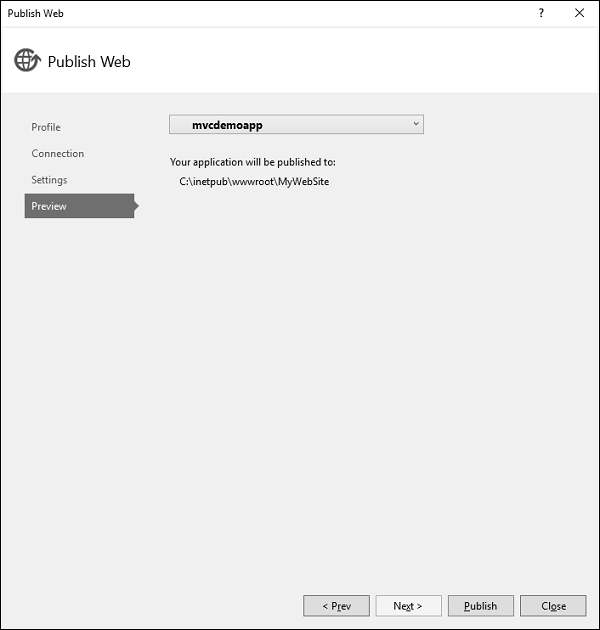
Step 7 − Click Publish button, it will publish the files at the desired location.
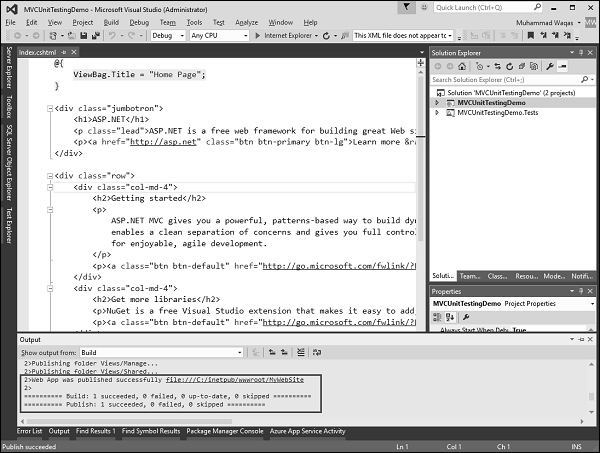
You will see all the files and folders in the target location on your system.
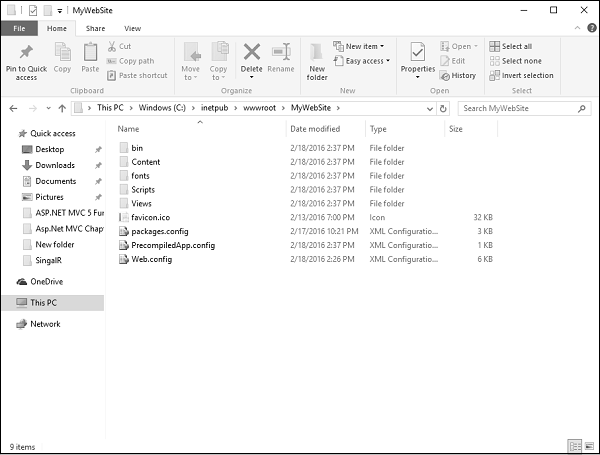
It will have all the files required to get deployed on the localhost.
Step 8 − Now open the Turn Windows Feature on or off and Expand Internet Information Services → World Wide Web Services → Application Development Features.
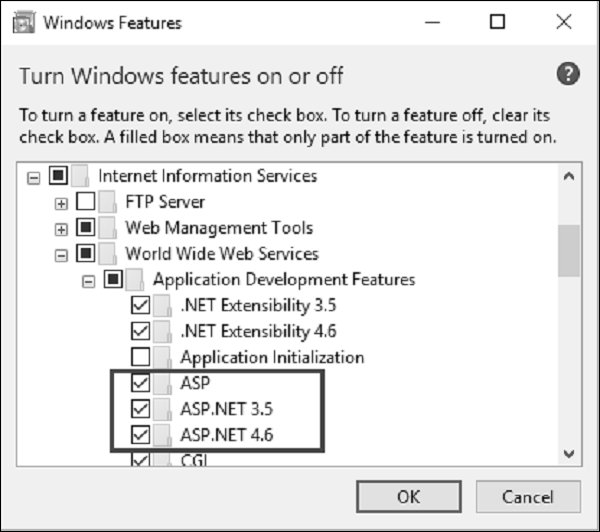
Step 9 − Check the checkboxes as shown in the above screenshot and click Ok.
Step 10 − Lets open the IIS Manager as shown in the following screenshot.
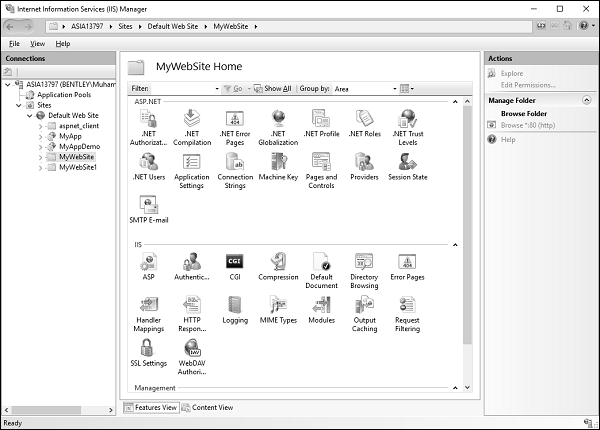
Step 11 − You will see different connections on the left side of the screen, right-click on MyWebSite.
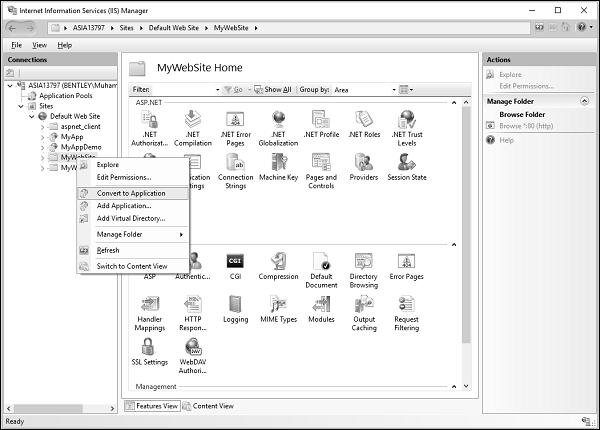
Step 12 − Select the Convert to Application option.
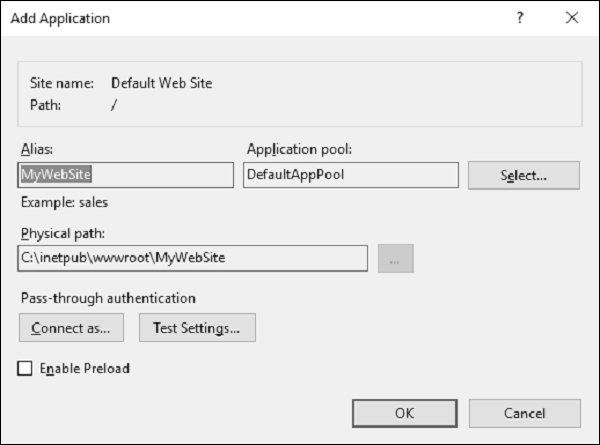
As you can see, its physical path is the same as we have mentioned above while publishing, using the File system.
Step 13 − Click Ok to continue.
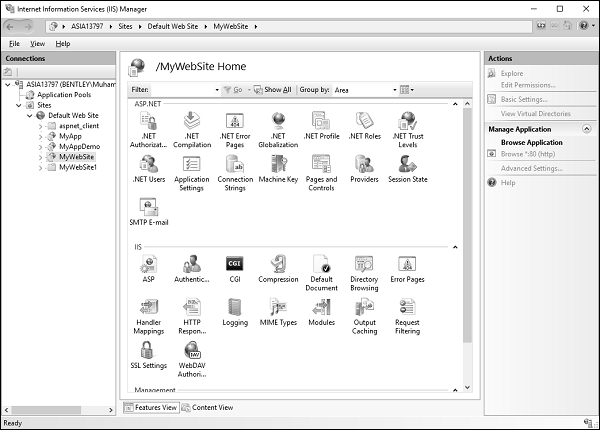
Now you can see that its icon has changed.
Step 14 − Open your browser and specify the following URL http://localhost/MyWebSite
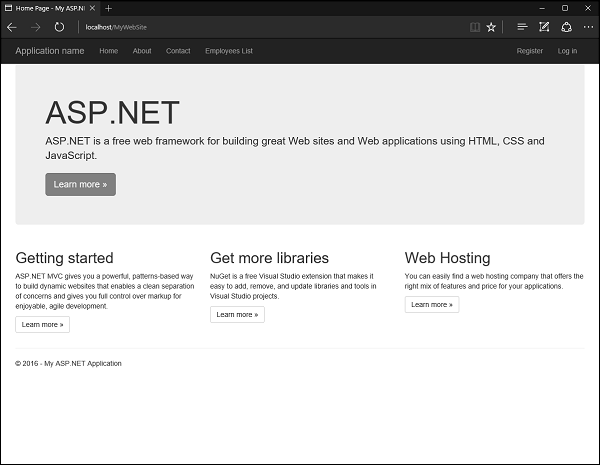
You can see that it is running from the folder which we have specified during deployment.