
Helpers
HtmlHelper in ASP.NET MVC
In ASP.NET Web Forms, developers use the Toolbox to drag and drop controls on a page.
However, in ASP.NET MVC, there is no toolbox and no drag-and-drop functionality for views.
In MVC, a View is purely HTML-based. Developers must manually write HTML code.
Because of this, developers coming from a Web Forms background may initially find MVC difficult.
HtmlHelper Class
To simplify UI creation, ASP.NET MVC provides the HtmlHelper class.
HtmlHelper contains methods to generate HTML elements programmatically
These methods return HTML as a string
Final HTML is generated at runtime
HtmlHelper is available only in Views
It should not be used in Controllers or Models
Types of HtmlHelper Methods
HtmlHelper methods are broadly categorized as:
Create Inputs
TextBox, Editor, Hidden fields, Buttons
Create Links
Generates links using routing information
Create Forms
Creates
Example: HtmlHelper Usage in a View
Given below is the list of methods in HtmlHelper class.
If you look at the view from the last chapter which we have generated from EmployeeController index action, you will see the number of operations that started with Html, like Html.ActionLink and Html.DisplayNameFor, etc. as shown in the following code.
@model IEnumerable @Html.ActionLink("Create New", "Create")
@foreach (var item in Model) { @Html.DisplayNameFor(model => model.Name) @Html.DisplayNameFor(model => model.JoiningDate) @Html.DisplayNameFor(model => model.Age) } @Html.DisplayFor(modelItem => item.Name) @Html.DisplayFor(modelItem => item.JoiningDate) @Html.DisplayFor(modelItem => item.Age) @Html.ActionLink("Edit", "Edit", new { id = item.ID }) | @Html.ActionLink("Details", "Details", new { id = item.ID }) | @Html.ActionLink("Delete", "Delete", new { id = item.ID })
This HTML is a property that we inherit from the ViewPage base class. So, it's available in all of our views and it returns an instance of a type called HTML Helper.
Lets take a look at a simple example in which we will enable the user to edit the employee. Hence, this edit action will be using significant numbers of different HTML Helpers.
If you look at the above code, you will see at the end the following HTML Helper methods
@Html.ActionLink("Edit", "Edit", new { id = item.ID })
In the ActionLink helper, the first parameter is of the link which is Edit, the second parameter is the action method in the Controller, which is also Edit, and the third parameter ID is of any particular employee you want to edit.
Lets change the EmployeeController class by adding a static list and also change the index action using the following code.
public static List
Lets update the Edit action. You will see two Edit actions one for GET and one for POST. Lets update the Edit action for Get, which has only Id in the parameter as shown in the following code.
// GET: Employee/Edit/5 public ActionResult Edit(int id){ List
Now, we know that we have action for Edit but we dont have any view for these actions. So we need to add a View as well. To do this, right-click on the Edit action and select Add View.
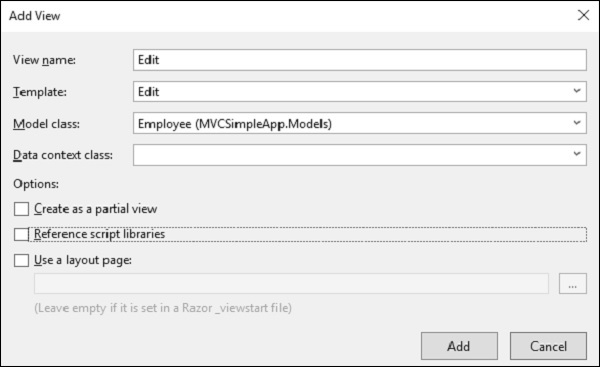
You will see the default name for view. Select Edit from the Template dropdown and Employee from the Model class dropdown.
Following is the default implementation in the Edit view.
@model MVCSimpleApp.Models.Employee @{ Layout = null; }
Employee
@Html.ValidationSummary( true, "", new { @class = "text-danger" }) @Html.HiddenFor(model => model.ID)
As you can see that there are many helper methods used. So, here HTML.BeginForm writes an opening Form Tag. It also ensures that the method is going to be Post, when the user clicks on the Save button.
Html.BeginForm is very useful, because it enables you to change the URL, change the method, etc.
In the above code, you will see one more HTML helper and that is @HTML.HiddenFor, which emits the hidden field.
MVC Framework is smart enough to figure out that this ID field is mentioned in the model class and hence it needs to be prevented from getting edited, that is why it is marked as hidden.
The Html.LabelFor HTML Helper creates the labels on the screen. The Html.ValidationMessageFor helper displays proper error message if anything is wrongly entered while making the change.
We also need to change the Edit action for POST because once you update the employee then it will call this action.
// POST: Employee/Edit/5 [HttpPost] public ActionResult Edit(int id, FormCollection collection){ try{ var employee = empList.Single(m => m.ID == id); if (TryUpdateModel(employee)){ //To Do:- database code return RedirectToAction("Index"); } return View(employee); }catch{ return View(); } }
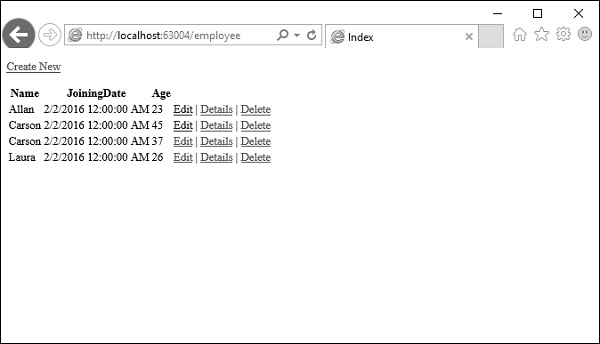
Lets run this application and request for the following URL http://localhost:63004/employee. You will receive the following output.
Click on the edit link on any particular employee, lets say click on Allan edit link. You will see the following view.
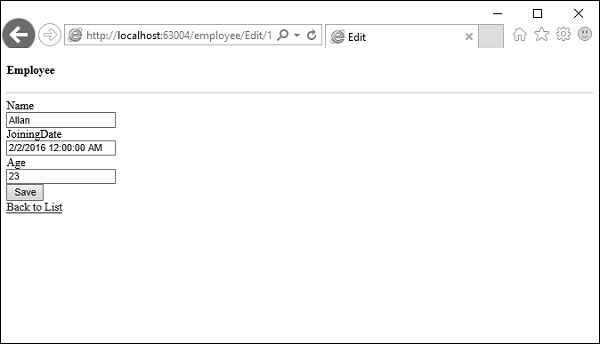
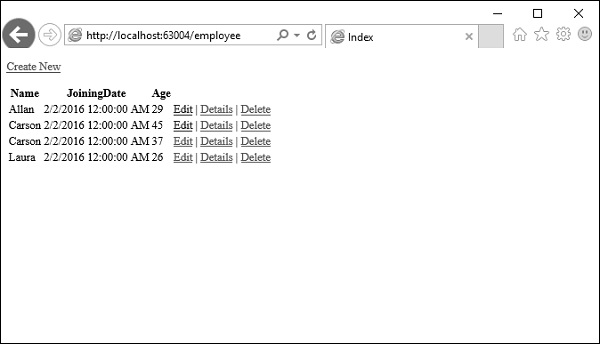
Lets change the age from 23 to 29 and click Save button, then you will see the updated age on the Index View.