

Filters
Filters in ASP.NET MVC
In ASP.NET MVC, controllers contain action methods that usually match user actions one-to-one. However, there are many situations where you want to execute some logic before an action runs or after it finishes.
To support this requirement, ASP.NET MVC provides Filters.
Filters are custom classes that allow you to inject logic before or after an action method executes. They can be applied either declaratively (using attributes) or programmatically.
Action Filters
An action filter is an attribute that can be applied to:
A single action method, or
An entire controller
Action filters modify how an action is executed.
Built-in Action Filters in MVC
ASP.NET MVC provides several built-in filters, such as:
OutputCache – Caches the output of an action for a specific duration
HandleError – Handles runtime errors during action execution
Authorize – Restricts access based on users or roles
Types of Filters in ASP.NET MVC
ASP.NET MVC supports four types of filters, executed in a fixed order:
Authorization Filters
Implement IAuthorizationFilter
Used for authentication and authorization
Example: Authorize filter
Action Filters
Implement IActionFilter
Execute code before and after an action method
Result Filters
Implement IResultFilter
Execute code before and after the action result
Exception Filters
Implement IExceptionFilter
Handle unhandled exceptions
🔹 Execution Order
Authorization → Action → Result → Exception
Exception filters always execute last.
Creating a Sample MVC Project
Open Visual Studio
Go to File → New → Project
Select Visual C# → Web
Choose ASP.NET Web Application
Name it MVCFiltersDemo
Select Empty template and check MVC
Click OK
Apply Action Filter
An action filter can be applied to either an individual controller action or an entire controller. For example, an action filter OutputCache is applied to an action named Index() that returns the string. This filter causes the value returned by the action to be cached for 15 seconds.
To make this a working example, lets modify the controller class by changing the action method called Index using the following code.
using System; using System.Collections.Generic; using System.Linq; using System.Web; using System.Web.Mvc; namespace MVCFiltersDemo.Controllers { public class HomeController : Controller{ // GET: Home [OutputCache(Duration = 15)] public string Index(){ return "This is ASP.Net MVC Filters Tutorial"; } } }
When you run this application, you will see that the browser is displaying the result of the Index action method.
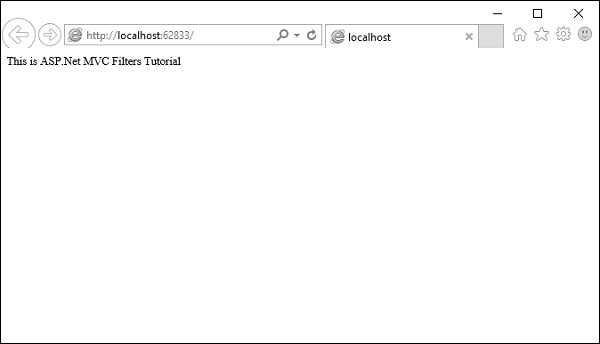
Lets add another action method, which will display the current time.
namespace MVCFiltersDemo.Controllers{ public class HomeController : Controller{ // GET: Home [OutputCache(Duration = 15)] public string Index(){ return "This is ASP.Net MVC Filters Tutorial"; } [OutputCache(Duration = 20)] public string GetCurrentTime(){ return DateTime.Now.ToString("T"); } } }
Request for the following URL, http://localhost:62833/Home/GetCurrentTime, and you will receive the following output.
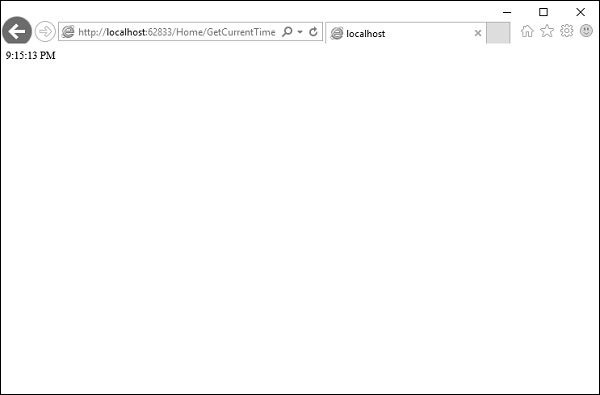
If you refresh the browser, you will see the same time because the action is cached for 20 seconds. It will be updated when you refresh it after 20 seconds.
Custom Filters
To create your own custom filter, ASP.NET MVC framework provides a base class which is known as ActionFilterAttribute. This class implements both IActionFilter and IResultFilter interfaces and both are derived from the Filter class.
Lets take a look at a simple example of custom filter by creating a new folder in your project with ActionFilters. Add one class for which right-click on ActionFilters folder and select Add → Class.
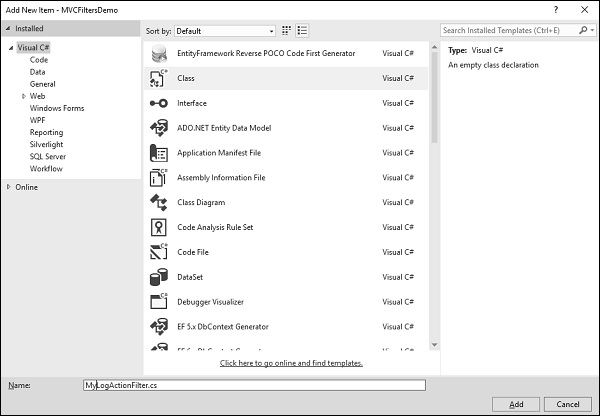
Enter MyLogActionFilter in the name field and click Add button.
This class will be derived from the ActionFilterAttribute, which is a base class and overrides the following method. Following is the complete implementation of MyLogActionFilter.
using System; using System.Collections.Generic; using System.Diagnostics; using System.Linq; using System.Web; using System.Web.Mvc; using System.Web.Routing; namespace MVCFiltersDemo.ActionFilters { public class MyLogActionFilter : ActionFilterAttribute{ public override void OnActionExecuting(ActionExecutingContext filterContext){ Log("OnActionExecuting", filterContext.RouteData); } public override void OnActionExecuted(ActionExecutedContext filterContext){ Log("OnActionExecuted", filterContext.RouteData); } public override void OnResultExecuting(ResultExecutingContext filterContext){ Log("OnResultExecuting", filterContext.RouteData); } public override void OnResultExecuted(ResultExecutedContext filterContext){ Log("OnResultExecuted", filterContext.RouteData); } private void Log(string methodName, RouteData routeData){ var controllerName = routeData.Values["controller"]; var actionName = routeData.Values["action"]; var message = String.Format( "{0} controller:{1} action:{2}", methodName, controllerName, actionName); Debug.WriteLine(message, "Action Filter Log"); } } }
Let us now apply the log filter to the HomeController using the following code.
using MVCFiltersDemo.ActionFilters; using System; using System.Collections.Generic; using System.Linq; using System.Web; using System.Web.Mvc; namespace MVCFiltersDemo.Controllers { [MyLogActionFilter] public class HomeController : Controller{ // GET: Home [OutputCache(Duration = 10)] public string Index(){ return "This is ASP.Net MVC Filters Tutorial"; } [OutputCache(Duration = 10)] public string GetCurrentTime(){ return DateTime.Now.ToString("T"); } } }
Run the application and then observe the output window.
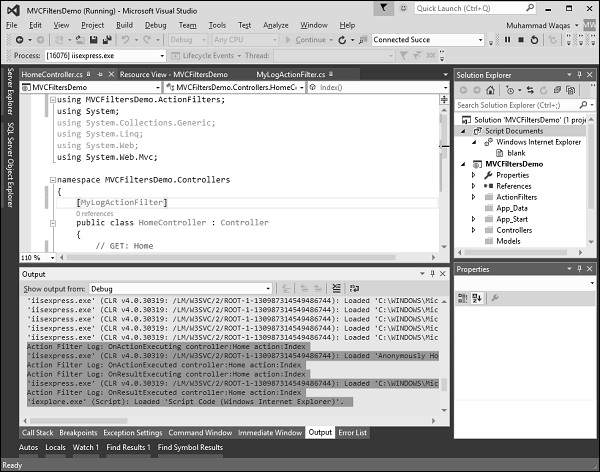
As seen in the above screenshot, the stages of processing the action are logged to the Visual Studio output window.