
Databases
Using Database with ASP.NET MVC
So far in this tutorial, all ASP.NET MVC applications were passing hard-coded data from Controllers to Views. However, in real-world web applications, data must be stored and retrieved from a database.
In this chapter, we use Entity Framework (EF) to work with a database in an ASP.NET MVC application.
What is Entity Framework?
Entity Framework (EF) is a .NET data-access technology that allows developers to:
Work with data using C# classes
Avoid writing most SQL queries
Automatically create databases from model classes
EF supports Code First approach, where:
You define models as simple C# classes
EF automatically creates the database and tables
This results in cleaner code and faster development.
Example
Lets take a look at a simple example in which we will add support for Entity framework in our example.
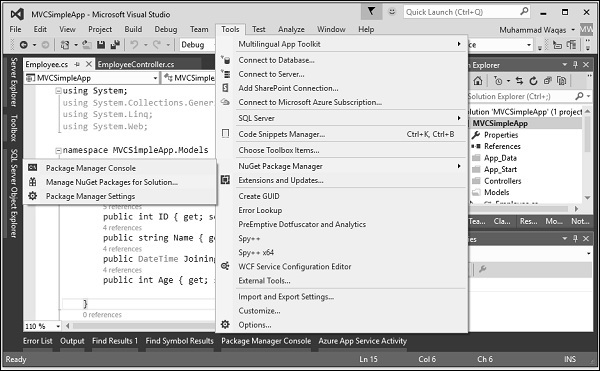
Step 1 − To install the Entity Framework, right-click on your project and select NuGet Package Manager → Manage NuGet Packages for Solution
It will open the NuGet Package Manager. Search for Entity framework in the search box.
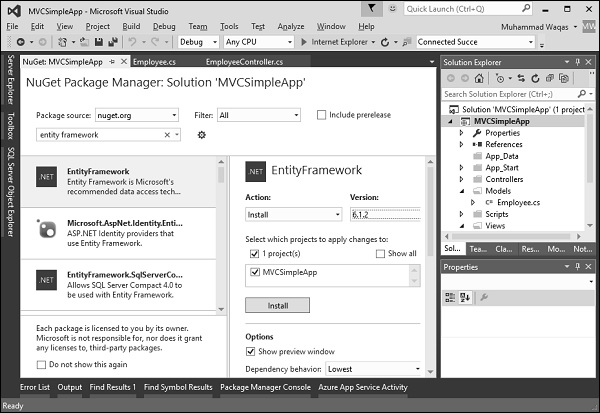
Select the Entity Framework and click Install button. It will open the Preview dialog.
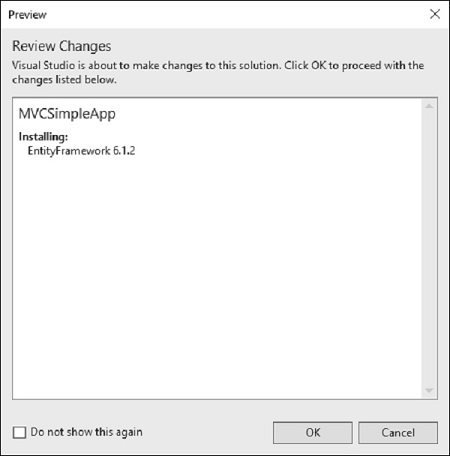
Click Ok to continue.
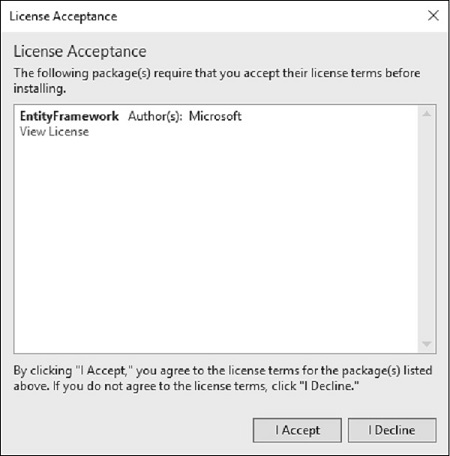
Click the I Accept button to start installation.
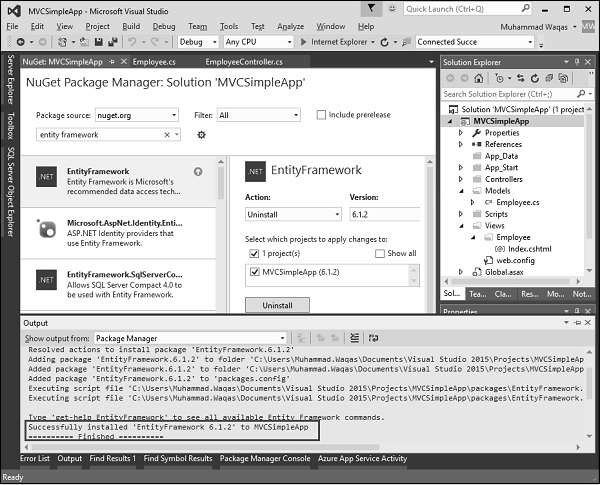
Once the Entity Framework is installed you will see the message in out window as seen in the above screenshot.
Creating the Model and DbContext
Employee Model and DbContext
using System;
using System.Collections.Generic;
using System.Data.Entity;
namespace MVCSimpleApp.Models{
public class Employee{
public int ID { get; set; }
public string Name { get; set; }
public DateTime JoiningDate { get; set; }
public int Age { get; set; }
}
public class EmpDBContext : DbContext{
public EmpDBContext(){ }
public DbSet
Explanation
Employee represents a database table
EmpDBContext inherits from DbContext
DbSet
EF uses this class to query and save data
Connection String
You can define a connection string in Web.config:
Important Note
If you do not add a connection string, EF will automatically create a LocalDB database using the DbContext name
For simplicity, this demo does not use a custom connection string
Updating the Employee Controller
Replace hard-coded data with database operations.
EmployeeController with Entity Framework
using MVCSimpleApp.Models; using System.Linq; using System.Web.Mvc; namespace MVCSimpleApp.Controllers{ public class EmployeeController : Controller{ private EmpDBContext db = new EmpDBContext(); public ActionResult Index(){ var employees = from e in db.Employees orderby e.ID select e; return View(employees); } public ActionResult Create(){ return View(); } [HttpPost] public ActionResult Create(Employee emp){ try{ db.Employees.Add(emp); db.SaveChanges(); return RedirectToAction("Index"); }catch{ return View(); } } public ActionResult Edit(int id){ var employee = db.Employees.Single(m => m.ID == id); return View(employee); } [HttpPost] public ActionResult Edit(int id, FormCollection collection){ try{ var employee = db.Employees.Single(m => m.ID == id); if (TryUpdateModel(employee)){ db.SaveChanges(); return RedirectToAction("Index"); } return View(employee); }catch{ return View(); } } } }
Then we run this application with the following URL http://localhost:63004/Employee. You will see the following output.
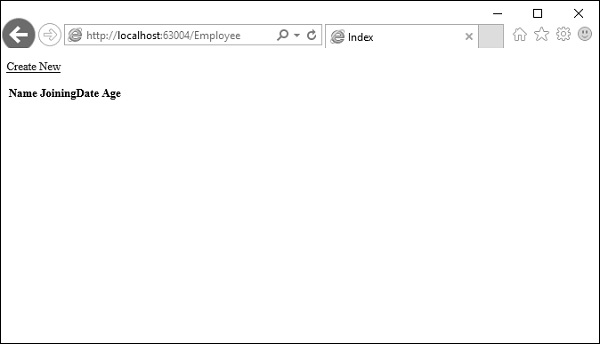
As you can see that there is no data on the view, this is because we have not added any records in our database, which is created by Visual Studio.
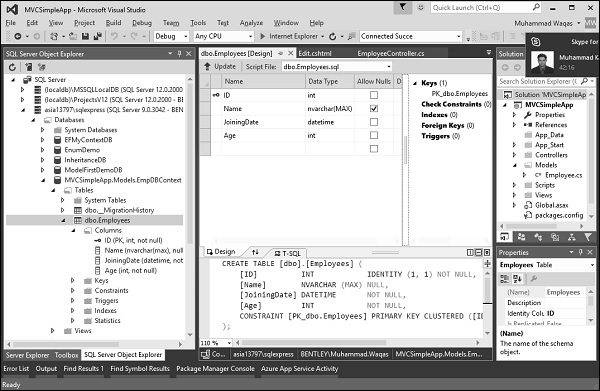
Lets go to the SQL Server Object Explorer, you will see the database is created with the same name as we have in our DBContext class.
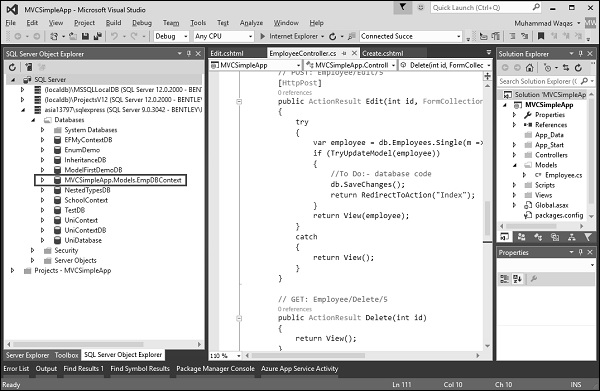
Lets expand this database and you will see that it has one table which contains all the fields we have in our Employee model class.
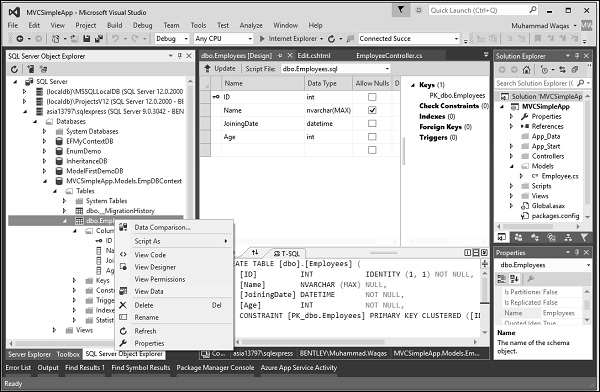
To see the data in this table, right-click on the Employees table and select View Data.
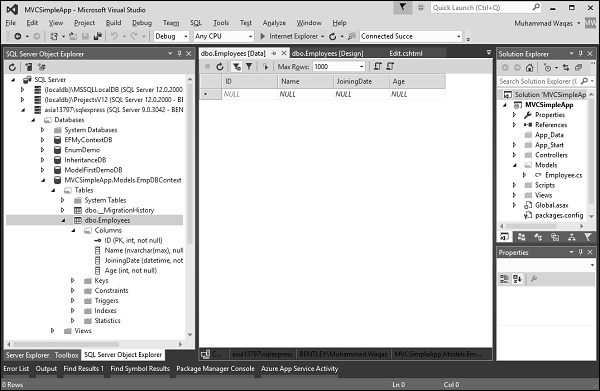
You will see that we have no records at the moment.
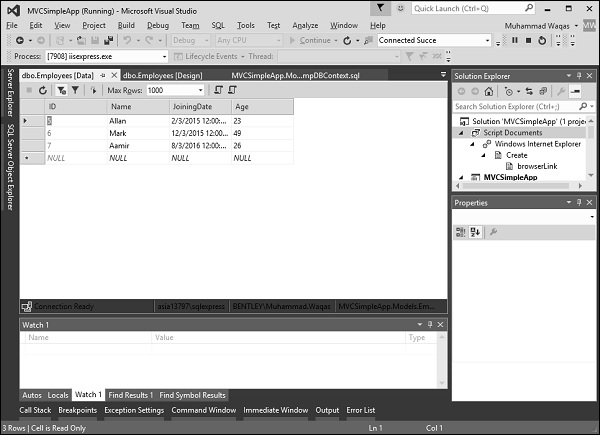
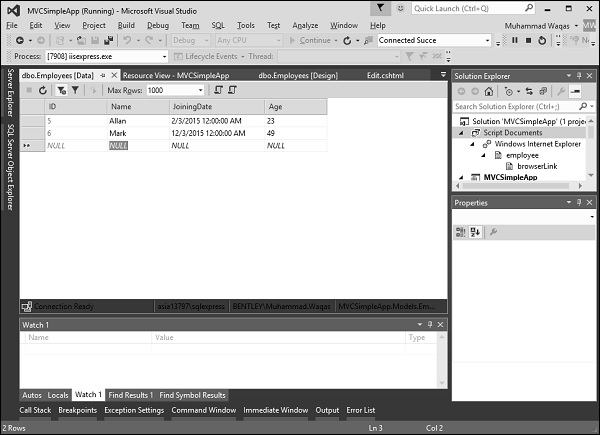
Lets add some records in the database directly as shown in the following screenshot.
Refresh the browser and you will see that data is now updated to the view from the database.
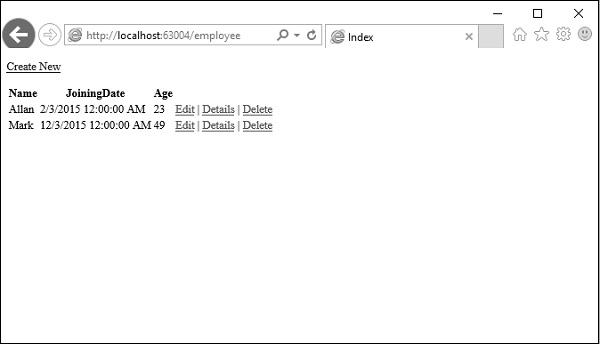
Lets add one record from the browser by clicking the Create New link. It will display the Create view.
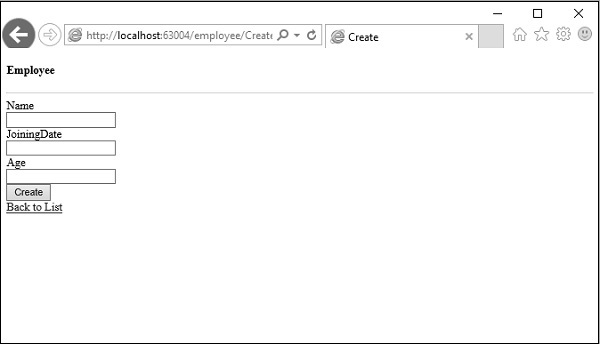
Lets add some data in the following field.
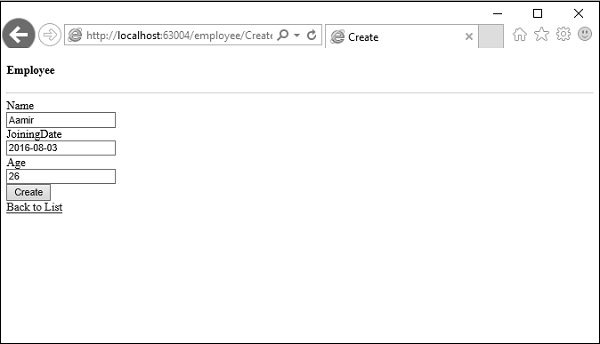
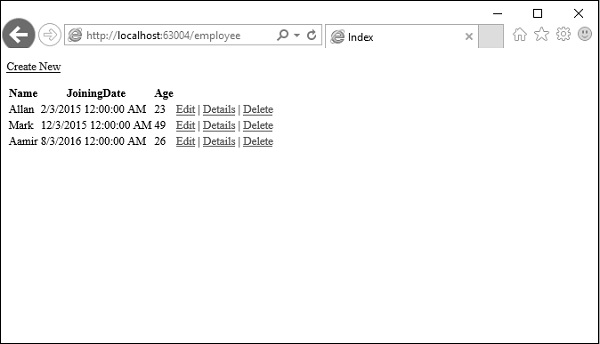
Click on the Create button and it will update the Index view as well add this new record to the database.
Now lets go the SQL Server Object Explorer and refresh the database. Right-click on the Employees table and select the View data menu option. You will see that the record is added in the database.